Listing all pages...

PulseAudio: Sound over the network

Published by manu
Updated

Update: I added the package dbus-x11 which needs to be installed for this to work on a system that has no X server.

It may have taken me years, but finally I got around to implementing this and it works, easy. About a decade ago, in the days of OSS I once even tried to export /dev/pcm using NFS.. I know, it was funny though.

Sound Server Setup

I am using a Raspberry Pi that I was offered by a friend (because I had gotten technically older) but I am sure this should work with any computer. I am using the default Raspbian image. I would say you should already have sound working on this computer. Then install a few new things: apt-get install pulseaudio pulseaudio-module-zeroconf avahi-daemon dbus-x11

Then edit /etc/default/pulseaudio and change PULSEAUDIO_SYSTEM_START from 0 to 1: PULSEAUDIO_SYSTEM_START=1

Tell PulseAudio to listen (lolpunhaha) to network connections by adding the following 2 lines to /etc/pulse/system.pa (adjust the subnet to whatever you need): load-module module-native-protocol-tcp auth-ip-acl=127.0.0.1;192.168.0.0/24 load-module module-zeroconf-publish

You could either restart PulseAudio or just reboot the whole thing if you're lazy.

Sound Client

As usual I am using Debian, in this case Wheezy, hence maybe a standard Squeeze may not work with this (I haven't tested yet).

We need to change a PulseAudio client preference, and because this is a desktop I don't mind resorting to a GUI, so I installed paprefs: apt-get install paprefs

Run paprefs and under the "Network Access" tab there should be an option called "Make discoverable PulseAudio network sound device available locally", activate that.

Then all is left is to restart PulseAudio on the client. The easiest way is to reboot the whole system, but really.. really ? You could just kill and start your PulseAudio session thing: pulseaudio -k pulseaudio --start

No More Playing with Audio Cables !

Now via pavucontrol I can send the sound to the Rapsberry Pi which is connected to the speakers or switch them back to use my laptops system. Same for others here, we're all connected to the main speakers so no need to pass the cable around the table.

Spam Comments

Published by manu

Comment spam is the art of crafting spammy comments and getting them posted on websites and blogs (and on blogs that are websites). The goal varies from just getting clicks to a malicious page to trying to augment page rank for some stupid website. Some comments don't even have any links to anything and are there just to see how easy it is to get a comment published.

It works because many blogs out there publish many of these comments, either automatically or because the moderator is so happy to read a positive comment they don't realise the spam aspect of it. Indeed many spam comments come in form of flattery, like (actual spam comment): Thanks for an idea, you sparked at thought from a angle I hadn’t given thought to yet. Now lets see if I can do something with it. If you search online for that comment you will find the same exact comment posted to numerous websites. In reality, it's a spam. Maybe not harmful, but definitely not an actual person flattering the author.

Note the spelling mistakes, they are intentional. Their purpose is to make it easy to find out where they've been successfully posted to. They can also test how much time it took for a comment to be moderated if moderated at all.

To prevent spam comments from being posted I've chosen to manually moderate each comment, this works fine because this site receives few visits.

However, one day I suddenly started to receive many spam comments, instead of giving up and using a 3rd party service I found some patterns that where common to all the spams. I then wrote a script to detect the pattern and move the spam comments awaiting moderation to a separate database dedicated to these spam comments. I also made the database publicly available on this site.

The spam rush stopped but I kept the system in place and added more stuff to detect spam and so on. It's relatively easy and mostly, it keeps the spam away while allowing real commentators to not have to go though visual contortions to decrypt letters nor do they have to "create an account" somewhere.

It's sort of a proof of concept that it might still be possible to allow users to interact with a website without forcing them to go through hoops. I'm sure this is the last breath of that, soon our Interweb will be ruined by bots.

Anyway, the spam comment database is constantly growing so I've moved it to a separate sub-domain at spam.manurevah.com. It should be easier to read through the comments and can help you, as a webmaster, determine if a comment you've received might actually be spam. Indeed, when I'm in doubt I do a verbatim search of a comment and see where it's been previously posted to or if it appears in some other spam comment database.

The spam comment database can also be interesting to look at, it's full of curiosities.

Please note/disclaimer: If your IP/comment is listed and it shouldn't then please do let me know. I am a human and I reserve the right to make mistakes.

Migrate emails with Imapcopy

Published by manu

I remember a while back migrating someone's email from one ISP to another using Thunderbird ! Well, duh, I just found a tool that seems to be a bit underrated, Imapcopy. There are many tools out there, but this one seemed simple yet efficient. However, for some odd reason it wasn't clear to me at first how simple and easy this was to use.

Install Imapcopy

It's in the Debian repositories, so just do (for other distributions just RTFM): apt-get install imapcopy

Configure and test

You can work from any directory on any system as any user (you don't need to be on the source or destination server). Simply create a file called imapcopy.cfg. There's an example here /usr/share/doc/imapcopy/examples/ImapCopy.cfg, however I'll show you a simple config to start off.

SourceServer imap.foo.tld SourcePort 143 DestServer imap.bar.tld DestPort 143 # SourceUser SourcePassword DestinationUser DestinationPassword Copy "user@foo.tld" "SuperPassowrd" "user@bar.tld" "OtherGreatPassword" Copy "user2@foo.tld" "SuperPassowrd" "user2@bar.tld" "OtherGreatPassword"

The first thing you might want to do is use port 993 TLS/SSL. This does not work with Imapcopy, but no need to panic, here's a very simple workaround using stunnel.

apt-get install stunnel

We'll setup stunnel for both servers, source and destination, in this example.

stunnel -c -f -d 1143 -r imap.foo.tld:993 -P '' stunnel -c -f -d 1144 -r imap.bar.tld:993 -P ''

What happens here is that stunnel will create a secure tunnel from 127.0.0.1:1143 (and 127.0.0.1:1144) to the IMAP servers on their ports 993. You can replace 1143 and 1144 with whatever you want. 127.0.0.1 now becomes the source and destination servers we will connect to.

So back to our example configuration, we need to change the servers and ports to: SourceServer 127.0.0.1 SourcePort 1143 DestServer 127.0.0.1 DestPort 1144

Configuration test

You can simply run imapcopy -t or with the -i option. -i will just connect to the servers, without logging in, -t will test the logins and show some infos (number of messages, folders, etc).

imapcopy -t

There's also an option to copy only 1 message per folder, -1, options to subscribe to folders and so on. Ideally you should create a test account on both servers, generate a bunch of emails, folders, etc on the source and see how the copy goes. Check imapcopy -h for other options.

Copy emails

Funny enough, I was wondering where the option was to start copying stuff, without using any of the options, it turns out it's not an option... .. . So to start copying just run the program, optionless:

imapcopy

That's just about it.. except for one thing. If you execute the copy twice, you will re-import the messages to the destination sever.. and so on.

There are probably more elegant solutions for keeping IMAP accounts synced, that wasn't my goal in this task, but I'd be glad to hear about it.

Save My VMs

Published by manu
Updated

So what about saving a whole VM and then you know, forget about it ?

Virtual Machines are the coolest thing in the.. data centre (after the actual cooling system). To add to it's refreshingness, a script that will can backup your virtual machines. For this script to work they need to be LVM based. You will also now need rsync

Use it, break it, mend it, distribute it, fork it. Just don't sell it or you will put a curse on your server and any VM it may contain (for as long as 3 generations).

Update/upgrade: We can rebuild it. We have the technology (rsync). We can make it better than it was. Better...stronger...faster. So yeah, now with rsync copies are a bit more optimal and the whole process is much faster (once your backups are already setup).

Direct download: Save My VMs v.0.2

#!/bin/bash # save_my_vms.sh - Backup script for xen virtual machines that use LVM # Version 0.2 # (c) 2011 Emmanuel Revah - manu-at-manurevah.com # This script makes snapshots of Xen virtual machines, mounts them # and then copies their content to a backup directory on Dom0 # You should test this script before using it, as always. # I WILL NOT BE RESPONSIBLE FOR ANY OF YOUR FUTURE MISFORTUNES. # This is free software: you can redistribute it and/or modify # it under the terms of the GNU General Public License as published by # the Free Software Foundation, either version 3 of the License, or # (at your option) any later version. # # save_my_vms.sh is distributed in the hope that it will be useful, # but WITHOUT ANY WARRANTY; without even the implied warranty of # MERCHANTABILITY or FITNESS FOR A PARTICULAR PURPOSE. See the # GNU General Public License for more details. # # You should have received a copy of the GNU General Public License # along with save_my_vms.sh. If not, see <http://www.gnu.org/licenses/>. ################## # General config # ################## # LVM group to use (later on in life might be added to per VM setting) LVGRP="vga" # global backup dir BACKUPDIR="/home/backups" # default number of copies the backup should reatain DEFAULT_COPIES="3" # default size of LVM snapshots, unless your systems read/write like crazy 10G should be more than enough SNAPSHOTSIZE="10G" ############### # VMs to save # ############### # VMs settings (the important stuff): # # - The configuration of VMs to backup uses arrays, so each VM should have a unique # ID (that would be the number in the square brackets). # - VM:is the name you want to use to refer to the VM, it will become the name of the directory # in which its backups are stored. Don't use spaces and other weird stuff, unless you like breakage. # - LVMS: are the names of the LVM partitions associated with the VM. These should be # in /dev/$LVGRP/. You can add as many LVM partitions that should be backed up. # Values should be space separated. # - COPIES: the amount of copies to keep. Every time you run the script a new copy is made. # # example: # VM[2]="name_of_vm" # LVMS[2]="vm-part1 vm-part2" # COPIES[2]="3" # optional, uses default value of DEFAULT_COPIES if undefined ############### # Mail config # ############### TO="wtbackup@example.com" FROM="root@example.com" MAILDATE=$(date +%Y-%m-%d_%H:%M:%S) SUBJECT="VM Backup ${MAILDATE} on `hostname -f`" SENDMAIL="/usr/lib/sendmail -t" XMAILER="Save my VMs" ### End of config ### EMAIL="Save my VMs has (hopefully) done the following (correctly):" # This is where things actually happen # for each VM for INDEX in ${!VM[*]}; do echo -e "\nVM: ${VM[$INDEX]}\t\tID: ${INDEX}" echo "LVMS: ${LVMS[$INDEX]}" EMAIL+="\n\n\n--> ${VM[$INDEX]} backup start: `date +%H:%M:%S`\n" # New report for each VM REPORT="Backup report for ${VM[$INDEX]} using 'save_my_ms.sh' on `date +%Y-%m-%d_%H:%M:%S`:" REPORT+="\n\n-> backup start: `date +%H:%M:%S`\n" # define retention if [[ ${COPIES[$INDEX]} -gt 0 ]]; then RETENTION=${COPIES[$INDEX]} else RETENTION=$DEFAULT_COPIES fi echo "Keep $RETENTION copies" # Move backups - Copy backups from previous... .. I mean.. . BACKUP_NUMBER=$RETENTION while [[ ${BACKUP_NUMBER} -gt 0 ]]; do BACKUP_PREV_NUMBER=`expr ${BACKUP_NUMBER} - 1` mkdir -p ${BACKUPDIR}/${VM[$INDEX]}/backup_${BACKUP_NUMBER}/ rsync -avu --delete ${BACKUPDIR}/${VM[$INDEX]}/backup_${BACKUP_PREV_NUMBER}/ ${BACKUPDIR}/${VM[$INDEX]}/backup_${BACKUP_NUMBER}/ BACKUP_NUMBER=`expr ${BACKUP_NUMBER} - 1` done # Create a TMP dir for this VM VMTMPDIR="${BACKUPDIR}/${VM[$INDEX]}/TMP" # For each LVM for LVM in ${LVMS[$INDEX]}; do DATE=$(date +%Y-%m-%d_%H-%M-%S) echo -e "\n --> Backup $LVM date: ${DATE}.. ." EMAIL+="\n\t$LVM: `date +%H:%M:%S` start" REPORT+="\n\t$LVM: `date +%H:%M:%S` start" # create lvm snapshot TMPLVM="${VM[$INDEX]}-${LVM}-BACKUP" lvcreate -L${SNAPSHOTSIZE} -s -n ${TMPLVM} /dev/${LVGRP}/${LVM} # create tmp dir to mount snapshot TMPDIR="${VMTMPDIR}/${LVM}" mkdir -p ${TMPDIR} mount /dev/${LVGRP}/${TMPLVM} ${TMPDIR} # create backup dir and copy data LVMBACKUPDIR="${BACKUPDIR}/${VM[$INDEX]}/backup_0/${LVM}" mkdir -p ${LVMBACKUPDIR} ionice -c 3 rsync -avu --delete ${TMPDIR}/ ${LVMBACKUPDIR}/ # umount and remove tmp dir and snapshot umount ${TMPDIR} rmdir ${TMPDIR} lvremove -f /dev/${LVGRP}/${TMPLVM} echo -e " . ..Backup $LVM done <--\n" EMAIL+="\n\t$LVM: `date +%H:%M:%S` done\n" REPORT+="\n\t$LVM: `date +%H:%M:%S` done\n" done # Remove TMP dir rmdir ${VMTMPDIR} EMAIL+="\n${VM[$INDEX]} backup done: `date +%H:%M:%S` <-" REPORT+="\n${VM[$INDEX]} -> backup done: `date +%H:%M:%S`" # Post report (per VM) echo -e "${REPORT}" > ${BACKUPDIR}/${VM[$INDEX]}/backup_0/Backup_report done # Send email echo -e "From: $FROM\nTo: $TO\nReply-To: $FROM\nSubject: $SUBJECT\nX-Mailer: $XMAILER\n$EMAIL" |$SENDMAIL exit

Encrypt a Hard Drive - Lazy Guide

Published by manu

This is a lazy guide (mostly for me to refer to) on how to encrypt a hard drive on Debian GNU/Linux. What this lazy guide does not cover is how to make your machine bootable, so if you want to encrypt your whole system (very good practice), you should probably do it via your OS installer.

Important note: The following contains examples of commands that may totally destroy data that you didn't want to destroy. Please be careful and don't stupidly copy paste and expect Jesus to show up at your door with the original 10 commandments. Also note I am a human being, so it is totally possible for me to make mistakes and/or typos.

Create a partition

Okay, so lets break things now. First, create a partition that we will encrypt, use your favourite disk partitioner, fdisk, cfdisk, gdisk or whatever you find.

Let's assume we will be working with /dev/sdb and we created the new partition /dev/sdb1. No need to format or anything, that should be done later.

Encrypt the Partition

We'll need cryptsetup to do this. If you don't already have it installed:

apt-get install cryptsetup

Now encrypt it ! (careful):

cryptsetup -y -s 256 -c aes-cbc-essiv:sha256 luksFormat /dev/sdb1

The options used mean as follows:

  • -y: confirm passphrase (ask twice)
  • -s 256: key size
  • -c aes-cbc-essiv:sha256: LUKS cipher:hash

Decrypt the Partition

Now is when we will want to format it, or eventually use it for LVM, etc. First though, we must decrypt it as follows:

cryptsetup luksOpen /dev/sdb1 encryptedcrap

Note: You can replace encryptedcrap with whatever you want. All this means is that this disk will be available at /dev/mapper/encryptedcrap.

Once decrypted you can format it using /dev/mapper/encryptedcrap, for example:

mkfs.ext3 /dev/mapper/encryptedcrap

You could create drives using LVM etc etc, just do it on /dev/mapper/encryptedcrap.

Now you can mount your partition as usual:

mount /dev/mapper/encryptedcrap /mnt/somewhere

Undecrypt it

You can re-encrypt it and make it unreadable at any time, all you need to do is un-mount it (if it's mounted) and "luksClose" it:

cryptsetup luksClose /dev/mapper/encryptedcrap

Basic Key Management

You should have so far 1 key. There are 8 key slots on this lock (from 0 to 7), so you can have up to eight passphrases (keys). You can check the status by doing:

cryptsetup luksDump /dev/sdb1

This should show you a bunch of stuff, for now you should mostly be interested with: Key Slot 0: ENABLED So far all other key slots should be disabled. These numbers will come in handy later.

Add a Key

When adding a new key you will be asked to provide an existing key first, of course, then you will be prompted for the new passphrase:

cryptsetup luksAddKey /dev/sdb1

Note: By default keys are added to the first available slot. If you are using keys 0, 1, 3, then the next key would be added to slot 2. However, it is possible to specify which slot to use when adding a key by using the --key-slot option. Example:

cryptsetup luksAddKey /dev/sdb1 --key-slot 6

Deleting a Key

You can delete a key either by knowing the actual passphrase you want to delete OR by using the key slot. This is why it's important to keep track of who's using which slot.

To delete a key using the passphrase, this will ask you to enter the passphrase to delete and then a remaining valid key:

cryptsetup luksRemoveKey /dev/sdb1

To delete a key by slot, in this case if we want to disable slot 1, this will simply ask for a valid key (not the one being deleted of course):

cryptsetup luksKillSlot /dev/sdb1 1

And.. .. that's it for today.

Random File Creator

Published by manu

Ever need to create a specific amount of files with random content and of random sizes between a specific range ? And all these files randomly placed in a specific maximum number of directories ? Today I needed to do this to replicate a specific scenario and test various things...(blah blah bla)..

Spoiler alert, this is actually easy so if you like solving puzzles don't look, go try and be happy when you'v figured it out... If you are lazy then steal this script.. Check the script's comments for config and extras.

#!/bin/bash # DO WHAT THE FUCK YOU WANT TO PUBLIC LICENSE # Version 2, December 2004 # # Copyright (C) 2011 Emmanuel Revah <manu@manurevah.com> # # Everyone is permitted to copy and distribute verbatim or modified # copies of this license document, and changing it is allowed as long # as the name is changed. # # DO WHAT THE FUCK YOU WANT TO PUBLIC LICENSE # TERMS AND CONDITIONS FOR COPYING, DISTRIBUTION AND MODIFICATION # # 0. You just DO WHAT THE FUCK YOU WANT TO. ##### Config (uration) ##### # QTY of files to create QTY=1000000 # Where to create new files ? OUTPUT="/home/herebefiles" # Min and Max size per file in kB MIN=1 MAX=10 # Max number of directories to create MAXDIR=500 ############## END CONFIG ############# # Correct MIN and MAX and check MAX=`expr $MAX - $MIN + 1` if [[ ${MAX} < 0 ]]; then echo "ERROR: MAX is lower than MIN, and vice versa." exit fi for i in $(seq 1 $QTY); do echo "File number -> $i" DDCOUNT=$[ ( $RANDOM % $MAX ) + $MIN ] DIR=$[ ( $RANDOM % $MAXDIR ) + 1 ] # uncomment and use "$OUTPUT/$DIR/${i}_$FILENAME" to avoid rewriting over previous random files #FILENAME=`head -n1 /dev/urandom | md5sum| awk {'print $1'}` if [ ! -d $OUTPUT/$DIR ]; then mkdir -p $OUTPUT/$DIR fi dd bs=1024 count=$DDCOUNT skip=0 if=/dev/urandom of=$OUTPUT/$DIR/${i} 2> /dev/null done

Mailboy

Published by manu
Updated

Ready.

Latest: version 0.5

changelog:
0.5
New ACL white/blacklisting
0.4.6
Added template "purplehaze"
0.4.5.6
minor stuffs like regex comments and stuff i may have forgot to update before.. .oops : ]
0.4.5.4
fixed bug: can modify aliases to become catchall. added link titles to funky tandy theme
0.4.5.3
corrected the link to this page in one of the templates because Jan was going to bug me about this forever.. : ]
0.4.5.2
fixed bug where a server admin could delete the main server admin's domain and hence account

I wrote Mailboy with the intent of this to be a complete web interface for administrating email accounts. It uses a setup with Postfix, Dovecot and Amavis based on the great Workaround.org ISP style tutorial. This web administration interface can work if you have the Etch setup or the Lenny setup (instructions included below).

Mailboy features:

  • Server admin users - users that are "admin" may do anything
  • Per domain admins - a user may be admin for just one or more specific domains
  • Users may change their password and Amavis policy
  • Manage relay domains - so you can become backup MX for others
  • Easy to theme - The appearance can be completely taken care of, 3 themes are included
  • Released under GNU General Public License

The modifications I made to the Workaround tutorial setup:

  • Database: entries must be unique (aliases, domains)
  • Database (lenny): I brought back the "views" because I prefer that
  • Database: foreign keys are all over the place to make things easier to maintain
  • Database: added tables for Relay domains, per user amavis settings and quota
  • Database: create mailadmin user
  • Database: other changes made for the admin interface to work
  • Postfix: Mysql queries in configuration needs to be changed
  • Postfix: Add Mysql file and configuration for Relay domains (optional)
  • Dovecot: Mysql queries in configuration needs to be changed
  • Dovecot: Modify configuration to add per user quota (optional)
  • Amavis: Add option to change subject for spam (applies when user policy says "modify subject Y)
  • Amavis: Edit configuration file to enable per user scan policies

Why so many changes ?

One reason is that the database layout on Etch edition used to please me, now for performance reasons Christoph Haas decided to go without using views, I'm sure that makes a huge difference on big setups but for me it means that the data can possibly be incoherent. That also goes for the domain and alias tables, they have unique keys to ensure there are no duplicate entries. All this means the database scheme is a bit different and so the programs need to query Mysql in a tiny bit different way, it's not that complicated.

Another reason was to enable per user Amavis scanning, meaning you can setup a few policies and users may chose which one they want. This includes settings such as Tag levels, or bypassing certain tests. Users should be able to chose to not have their emails scanned or not have certain checks performed, it can be useful when a user is trying to receive a particular email with an attachment, users can deactivate file checks by him/her-self.

Modifying a server based on the Workaround tutorial does not take long, if you include careful reading and creating backup files as you go this should take less than 30 minutes.

What does this look like ?

A few screenshots will better describe this:

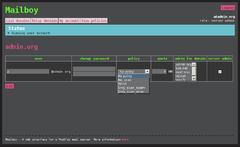
Mailboy - list and edit domains
Mailboy - account details
Mailboy - relay domains
Mailboy - Amavis policies
Mailboy - wow, a clean theme

Ok, lets do it !!

PLEASE TRY THIS ON A TEST SERVER FIRST, you can try it out using a test server be it a real one or via something like VirtualBox. You should always do this when installing any software on a production server. This means that you can possibly break your email server if you do not know what you are doing and are not patient. So take your time in a test environment.. If you are working on an email server I assume you know what you are doing anyways. :]

First thing

You will need a mail server that should be based on the Workaround.org ISP style email tutorial (Don't worry if you are still using the Etch version, it'll in fact be even easier). If you have not installed your mail server than follow the tutorial, it's a good document in that the instructions are precise yet complete, it doesn't lack explanations (so you can actually learn what's going on) and mostly it works just fine. You can for sure manage to use Mailboy in other situations but for that you are on your own (unless you hire me). :]

This page contains information for upgrading from Etch tutorial and Lenny tutorial, all steps are for both systems unless they are color coded as follows:

This is only for Etch tutorial
This is only for Lenny tutorial

Everything else is for both

DB operations

We need to change the way the database looks and add new tables, the simplest way is to (you should know how to do this):

  1. Export/backup the required data (virtual_domains, virtual_users, virtual_aliases)
  2. Drop all the tables on database 'mailserver'
  3. Create new database scheme

    For this there is an included file called database.sql which basically can be copy pasted to PhpMyAdmin or to Mysql shell...

  4. Insert old data
    The data from Etch tutorial should be compliant with the new database structure unless there are double entries.
    On Lenny tutorial user is called "email", we'll need to replace email by user. like this: INSERT INTO `virtual_users` (`id`, `domain_id`, `password`, `email`) VALUES should become: INSERT INTO `virtual_users` (`id`, `domain_id`, `password`, `user`) VALUES We also need to replace things like user@domain.tld to just user. With a text editor you can find and replace, using vim you can use: :%s/@.*'/'/

    The same issue occurs with the table virtual_aliases, the source field should be without the "@domain.tld" part, use the vim trick to get rid of that stuff

  5. Add mailadmin user.

    This user can read/write/delete from the mailserver database, it is needed by Mailboy. From within mysql you may simply type (replace password of course!)

    GRANT SELECT , INSERT , UPDATE , DELETE , CREATE , DROP , INDEX , ALTER , CREATE TEMPORARY TABLES , CREATE VIEW , SHOW VIEW , CREATE ROUTINE, ALTER ROUTINE, EXECUTE ON mailserver . * TO 'mailadmin'@'localhost' IDENTIFIED BY 'crazy_secure_password'; FLUSH PRIVILEGES ;
  6. IMPORTANT NOTE: If you get an error like ""constraint exists blah blah" it is probably just because the data is not inserted in the correct order (and so an email cannot exist unless the domain it's referenced to by domain_id exists). Just insert data in this order:
    1. virtual_domains
    2. virtual_users
    3. virtual_aliases

Postfix configuration

Lenny needs a few minor changes, basically we'll need to change the query lines in the following files:
  1. /etc/postfix/mysql-virtual-mailbox-maps.cf query = SELECT 1 FROM view_users WHERE email='%s'
  2. /etc/postfix/mysql-virtual-alias-maps.cf SELECT destination FROM view_aliases WHERE email='%s'
  3. /etc/postfix/mysql-email2email.cf SELECT email FROM view_users WHERE email='%s'

To add the Relay domain functionality add the new file /etc/postfix/mysql-relay-domains.cf and inside write:

user = mailuser password = mailuser_password hosts = 127.0.0.1 dbname = mailserver query = SELECT domain FROM relay_domains WHERE domain like '%s'

change permissions

chown root:postfix /etc/postfix/mysql-relay-domains.cf chmod 640 /etc/postfix/mysql-relay-domains.cf

configure Postfix to use the new file

postconf -e relay_domains=mysql:/etc/postfix/mysql-relay-domains.cf postconf -e relay_recipient_maps=

If you want to scan aliases addressed to accounts on this server according to the destination account's Amavis settings we should remove the no_address_mappings from main.cf, and add it to master.cf.

comment or delete from main.cf:

# receive_override_options = no_address_mappings

add in master.cf:

-o receive_override_options=no_header_body_checks,no_unknown_recipient_checks,no_address_mappings

NEW (0.5): We need to add a couple more files and edit main.cf again to use the new ACL settings. This will allow the admin to block or unblock IPs and/or email addresses.

NOTE: If you are upgrading from 0.4.X please read the included "UPGRADE" file for instructions on updating Mailboy's config and database (easy).

Edit /etc/postfix/mysql-smtpd_sender_restrictions.cf:

user = mailuser password = mailuser_password hosts = 127.0.0.1 dbname = mailserver query = SELECT state FROM domain_access WHERE domain = '%s'

Edit /etc/postfix/mysql-ip-access.cf:

user = mailuser password = mailuser_password hosts = 127.0.0.1 dbname = mailserver query = SELECT state FROM ip_access WHERE ip = '%s'

Change permissions:

chmod 640 /etc/postfix/mysql-ip-access.cf chmod 640 /etc/postfix/mysql-smtpd_sender_restrictions.cf chown root:postfix /etc/postfix/mysql-ip-access.cf chown root:postfix /etc/postfix/mysql-smtpd_sender_restrictions.cf

Edit /etc/postfix/main.cf, add at the bottom:

# you should normally uncomment the following line #smtpd_helo_required = yes smtpd_helo_restrictions = permit_mynetworks, check_client_access mysql:/etc/postfix/mysql-ip-access.cf, reject_non_fqdn_helo_hostname, reject_invalid_helo_hostname # check twice because otherwise allowed IPs may not pass the second test smtpd_client_restrictions = permit_mynetworks, check_client_access mysql:/etc/postfix/mysql-ip-access.cf, reject_unknown_client_hostname smtpd_sender_restrictions = mysql:/etc/postfix/mysql-smtpd_sender_restrictions.cf

Because we modified some things you might want to restart Postfix

/etc/init.d/postfix restart

Dovecot

On Lenny edition edit /etc/dovecot/dovecot-sql.conf and change the password_query line to:

password_query = SELECT email as user, password FROM view_users WHERE email='%u';

If you want to use per user quota settings (optional) you should add just under the previous line (this assumes you store the emails in /var/vmail, otherwise change that):

user_query = SELECT CONCAT('/var/vmail/',CONCAT(SUBSTRING_INDEX(email,'@',-1),'/',SUBSTRING_INDEX(email,'@',1))) AS home, 5000 AS uid, 5000 AS gid, CONCAT('maildir:storage=',quota_kb,':messages=',quota_messages) AS quota FROM view_users WHERE email='%u';

(optional)To enable per user quota settings we need to just add the user_query line to /etc/dovecot/dovecot-sql.conf (this assumes mails are stored in /home/vmail, otherwise change this part)

user_query = SELECT CONCAT('/home/vmail/',CONCAT(SUBSTRING_INDEX(email,'@',-1),'/',SUBSTRING_INDEX(email,'@',1))) AS home, 5000 AS uid, 5000 AS gid, CONCAT('maildir:storage=',quota_kb,':messages=',quota_messages) AS quota FROM view_users WHERE email='%u';

To enable per user quota we also need to edit /etc/dovecot/dovecot.conf. We need to search for the sections protocol imap { and add:

mail_plugins = quota imap_quota

and protocol pop3 { mail_plugins = quota

and protocol lda { mail_plugins = cmusieve quota

If you are using the Etch tutorial you may still be using the Lenny version Debian. However I'm not sure the quota stuff will work on Dovecot on Debian Etch

You may now restart Dovecot

/etc/init.d/dovecot restart

Amavis

This is where we tell Amavis to actually use the policy table in the database, if you don't do this part everything should still work but users may not change their scan policies

So let's edit /etc/amavis/conf.d/50-user and change or add a few things (if the setting is not in the file then you may add it)

  1. change #$sa_spam_subject_tag = undef; to: $sa_spam_subject_tag = 'SPAM:';
  2. change the $sql_select_policy to $sql_select_policy = 'SELECT * FROM view_users_policies WHERE email IN (%k)';
  3. change or add $sql_select_white_black_list, it should be: $sql_select_white_black_list = undef;

We can finally install Mailboy

At this point your server should be working as usual, so make sure that it works before continuing.

Now you'll need to download Mailboy, for that you may click here. Unpack it where you wish to use it (you should be fluent with this kind of thing).

Copy the example database configuration file db_config.php.example to db_config.php

  1. $db_user: in this case should be "mailadmin"
  2. $db_pass: the crazy secure password
  3. $db_host: in most cases "localhost" should work
  4. $db_database: unless you changed something: mailserver
  5. $super_dooper_user: this sould be set to the id of the master user. This prevents other server admins from modifying this account or managing server admins.

Then copy the example configuration file config.php.example to config.php and change a few things:

  • $mailboy_root: this is the path to the Mailboy install, if you installed Mailboy at the root of your web directory then this should be empty ("")

Other options are:

  • $template: yes, it's completely templatabel :]
  • $privacy_level: 0 is secure, however if you want to allow others to list/add/edit/delete certain things you can change this setting (more info in the config file)

Any user can already log into Mailboy and change their passwords, however there are no admins yet, you should start by manually adding yourself as admin. You can do this via phpMyAdmin or via Mysql (in this case the target user id is 42:

UPDATE virtual_users SET `admin` =1 WHERE id = 42;

Now the user with the id 42 may log in as server admin, the user may now define per domain admins, policies etc etc etc..

I worked quite a while on this after getting some positive feedback on the Bash script that serves this same purpose, so any comments are welcome (via the comment form or the "contact" page).. I hope this project is useful to others. : ]

Remotely Encrypt a Debian Server

Published by manu

These notes may help you in the case where you need to install a server without ever having access to the console. In this case the OS is also pre-installed, either by an automated system or by the server provider.

The plan is to get a base server OS installed on a small partition, for example Debian Squeeze, on less than 1GB, I used 666M and that works fine. From that system we can create our new encrypted partitions and move the system over there. And at last we'll setup an initramfs with busybox and SSH access, from there we can SSH to the server and decrypt the partition(s) we need to boot.

NOTE: This is tested on Debian Squeeze.

Install the server

A minimal partition should be as follows, edit this to suit your needs: /dev/sda1 /boot 256M # this partition will be kept /dev/sda2 / 1GB # used only to setup the main OS No swap, we don't need another partition to recycle somehow and later our swap will be encrypted of course. As for the root partition, you can make it smaller or bigger depending on how you want to re-use it (backupOS with backup website, or tools etc.. or /tmp, etc etc).

Note, in this example I will be using 2 hard drives configured using software Raid1, so for me it looks like this: /dev/md0 /boot 256M # this partition will be kept /dev/md1 / 666M # used only to setup the main OS

Along this page I'll put in bold things that may differ, or things for which you can chose your own string.

Install softwares

We don't really need much, just busybox, cryptsetup and dropbear from Debian and then Early-SSH.

apt-get install busybox cryptsetup dropbear

Check for the latest version of Early-SSH I used 0.2. Early-SSH will setup the whole business of getting dropbear to listen at boot.

wget http://dev.kakaopor.hu/early-ssh/downloads/early-ssh_0.2_all.deb dpkg -i early-ssh_0.2_all.deb

Configuration

Cryptdisks

This had akward effects like not working for me, so to avoid ball breakage edit /etc/default/cryptdisks: CRYPTDISKS_ENABLE=No

Early-SSH

We first need to fix a minor issue in /etc/initramfs-tools/hooks/early_ssh (if you are using /bin/dash for example). Edit /etc/initramfs-tools/hooks/early_ssh and change: /bin/sh to: /bin/bash

Next we need to configure the network, and perhaps disable the timeout (that's up to you). Edit /etc/early-ssh/early-ssh.conf and use your server's IP config: INTERFACE="eth0" IP="10.0.0.10" PORT="22" NETMASK="255.255.255.0" GATEWAY="10.0.0.1" TIMEOUT="" # in seconds (empty means disabled)

Update initramfs

Any time you may change any of the above, if so you will need to generate a new initramfs, easily done via: update-initramfs -u Even after some of the changes below this will be necessary, we will redo this step.

Sometimes update-initramfs -u says "update-initramfs: /boot/initrd.img-2.6.32-5-686-bigmem has been altered", well it also says: "update-initramfs: Cannot update. Override with -t option", in those cases try:

update-initramfs -u -t

Testing the boot process

At this point the server should first boot into busybox and dropbear should be serving access, we should test this to be sure all is fine; Let's reboot. reboot Now when your server comes back up (let's assume it does :]) you should be able to log into via SSH using your root username:password, the same as on the main system, yes.

You should be logged into busybox, if you want you can look around, otherwise to continue simply execute: finished This will continue the boot process (and log you out). After a few seconds you can log back in, this time back to your Debian system.

Creating encrypted partitions

In this example I will use RAID 1 and LVM, if you only want to use one or the other, or even regular partitions then this should also work though you may need to simplify the following. In any case this won't be mega detailed as it's beyond the scope of this page.

Raid 1

Create 2 partitions of the same size, let's say sda3 and sdb3. Then assemble them as follows: (you might need to reboot to use your newly created partitions)

mdadm --create --verbose /dev/md2 --level=1 --raid-devices=2 /dev/sda3 /dev/sdb3

Of course mdadm.conf is likely to be empty, if so:

mdadm --examine --scan --config=partitions >> /etc/mdadm/mdadm.conf

Encrypt it!

replace "md2" by whatever you chose to use as your target encrypted partition.

cryptsetup -y -s 256 -c aes-cbc-essiv:sha256 luksFormat /dev/md2

LVM it

You don't have to, you can just use sda3, sda5, etc etc, however in this case you will only need to manage one encrypted file system and hence only one password to type and so on.

Decrypt it first

Before manipulating our encrypted partition, we need to decrypt it, in my case I will decrypt the device as /dev/mapper/crypted-raid (pick whatever you want):

cryptsetup luksOpen /dev/md2 crypted-raid

Create the LVM device

First make /dev/mapper/crypted-raid an LVM device, then create an LVM group vga using it.

pvcreate /dev/mapper/crypted-raid vgcreate vga /dev/mapper/crypted-raid

Create the partitions

Here is a sample simple config, because it's LVM you can change your mind later.

lvcreate -L5G -nroot vga mkfs.ext3 /dev/vga/root lvcreate -L20G -nhome vga mkfs.ext3 /dev/vga/home # Example for swap lvcreate -L3G -nswap vga mkswap /dev/vga/swap

Copying the OS

If your system is pure and simple and nothing else has been installed, no activity basically, then you can do this from here:

mkdir /mnt/NEW/ mount /dev/vga/root /mnt/NEW mkdir /mnt/NEW/home mount /dev/vga/home /mnt/NEW/home cp -a /root/ /bin/ /etc/ /lib/ /opt/ /sbin/ /selinux/ /srv/ /tmp/ /usr/ /var/ /home/ /vmlinuz /initrd.img /mnt/NEW/ cd /mnt/NEW mkdir boot dev media mnt proc sys

Don't umount it yet...

New fstab

Edit the NEW fstab in /mnt/NEW/etc/fstab:

note: if you want to use UUIDs you can get them like this: blkid /dev/vga/* I'll use a bit of both here (for some reason I don't yet understand.

# old system #/dev/md1 / ext3 defaults 0 0 /dev/vga/root / ext3 defaults 0 0 /dev/vga/home /home ext3 defaults 0 0 # swap /dev/vga/swap swap swap defaults 0 0 UUID="8d990ccd-6f7c-498b-a729-527825cb7b78" swap swap defaults 0 0

Grub

Now let's edit /boot/grub/grub.cfg and replace the root with your LVM/encrypted root partition:

linux /vmlinuz-2.6.32-5-686-bigmem root=/dev/mapper/vga-root ro

update-initramfs -u

For the changes made to the raid configuration it helps to do this, else you'd have to reassemble the encrypted raid.

update-initramfs -u

Moment of truth

You can now reboot and you should be greeted by busybox shortly, as we've tested this I am guessing that's fine. We'll need to do a few things to make our filesystem available.

/sbin/mdadm -A --scan /sbin/modprobe dm_mod /sbin/cryptsetup luksOpen /dev/md2 crypted-raid /sbin/lvm vgchange -a y

If everything went well we can continue the bootup. If you'd like to confirm, check that you have your LVM partitions ready:

ls /dev/vga

You should see your LVM partitions. Now we are good to go:

finished

In a few seconds you should be on your new and fully encrypted system.

Add a Busybox script

Instead of remembering those lines of things to type we can easily add a script to busybox like this (remember to make sure it suits your setup)

Create a new file like /usr/share/initramfs-tools/scripts/prepare_my_stuff and put inside the lines we just typed in busybox's console: #!/bin/sh /sbin/mdadm -A --scan /sbin/modprobe dm_mod /sbin/cryptsetup luksOpen /dev/md2 crypted-raid /sbin/lvm vgchange -a y finished Make it executable: chmod +x /usr/share/initramfs-tools/scripts/prepare_my_stuff and update initramfs (always this guy). update-initramfs -u Next time you can you log into your busybox all you need to do is type: /scripts/prepare_my_stuff

Links

These pages helped me out.

SSL Without Built In Browser Certificates

Published by manu
Updated

Verifying websites using signed SSL certificates has always been something I have considered as weird, the goal of encryption is just to encrypt, the goal of verifying the identity of a website is something else. It is not the case for most browsers, when you visit a website that uses a self signed certificate to encrypt the data, your browser tells you "Oh no! They did not get their certificate signed in exchange for money: trust at your own risk".

In any case, I do not see how a site can be more secure when you get a signed certificate from a company who only verified your bank account, as a matter of fact, if you visit a phishing site (a compromised website with an extra new page that resembles often a banking site), they could as well have a valid SSL certificate and you wouldn't see the difference unless you actually look at the URL. Example, example.com gets a certificate for https://example.com, now you can see the little lock in your navigator saying "this site is secure", their website gets compromised and a new hidden page like https://example.com/phishing/bank.html is added, you still have the little lock that says "hey, this site is still secure !".

Just an Idea

So now that we can agree that third party SSL verification is useless what can we do ? First, always check the URL. Second, I have a new idea, what if I generate my own SSL certificate and ask YOU to verify it ? Here is how:

Considering your navigator is Mozilla based
  • Visit https://manurevah.com/
  • It will say "Secure Connection Failed"
  • Click "Or you can add an exception… then "Add Exception"
  • Then "Get certificate" and "View"
  • Check the SHA1 fingerprint
  • Interesting part, check the TXT DNS records for the domain you have in the URL bar, in this case: manurevah.com, using dig (ignore the SPF record): dig manurevah.com TXT to be really sure: dig manurevah.com TXT +trace

If the SHA1 fingerprint and the DNS record match you can be sure that whoever administers the zone and the website agree on what SSL certificate should be used to encrypt the data connection.

what we know from this

  • domain.tld resolves to IP
  • this site uses encryption
  • the encryption is verified by DNS

This is not total verification but most of the time this is enough (forums, newspapers, media, anywhere that I do not share critical data). It doesn't cost anyone extra money and doesn't involve any third party where there is no need for it. If you still suspect a Man in the Middle you could still: check DNS records from a different location (call a friend etc.. .).

This is actually the same level of verification (or higher ?) as required to purchase a basic valid ssl certificate, by valid I mean one that your browser already trusts, see https://www.trustico.com/validation/how-fast-is-my-ssl-certificate-issued.php These certificates verify that the certificate holder is the owner of that domain and they do that by sending an email to something generic like admin@domain.tld. When choosing to purchase a domain validated SSL Certificate an Approver will be chosen during the ordering process. We will send an Approver E-Mail to the designated Approver. For the basic certificates we have the same level of identity verification.

It would now be practical if this verification could simply be integrated in our navigators.

Actual verification

If the application/ressource you are accessing requires actual verification (email, banking, etc) then you should verify the fingerprint by contacting the site's owner. In other words, if you actually require verification than you might want to actually verify the identity yourself.

For example lets say you do online banking, your bank should provide you their fingerprint on paper (it should be on all their papers). Your browser should then allow you to verify the identity and mark the pair, website and certificate, as "verified".

If they maintain many websites they could/should also have their own certificate authority for which they provide the fingerprint as well, on paper and/or DNS.

An example of the CA being in the DNS (this should be used as a double/triple checking mechanisms) one could simply have another TXT entry for say: ca.domain.tld, in my case:

dig ca.manurevah.com TXT

This should show the fingerprint of my root CA (DO NOT INSTALL unless you actually trust me)

In the end the user should verify the identity of website's certificate and/or root certificates they trust, everyone can be as careless or paranoid as they want depending on the data they are communicating and their own security requirements/policies. In any case it logicaly seems careless to have everyone blindly trust all certificates signed by all the root certificates installed by default in most browsers. People can and should decide themselves wheter they want to simply trust a website or one or more root CAs.

The case of the CNAME

Let's say a single IP hosts multiple domains, they may have to share a certificate. Some of the sites may even use a CNAME instead of an A record to point to the web space, not a problem DNS queries should follow and we should use the TXT field of the destination of the link. That will give the SHA1 of the mutualised space. For example:

dig www.loozah.com TXT

This should return the TXT entry of loozah.com:

;; ANSWER SECTION: www.loozah.com. 3600 IN CNAME web.manurevah.com. web.manurevah.com. 10800 IN TXT "SHA1 Fingerprint=5E:3C:F1:BB:BF:56:67:F3:AA:42:80:C9:6D:F0:0B:30:71:03:26:8C"

So please, mister and misses developers of most people's web navigators, stop wiping out encrypted websites from the face of the internet just because. Thank you.

Inspiration

Update

Since there have been a few RFC drafts, my favorite is Using Secure DNS to Associate Certificates with Domain Names For TLS - draft-ietf-dane-protocol-06.. This seems to be close to the above idea but definitely more precise and extends to any service by default (in short, WAY better).

OpenVPN

Published by manu
Updated

There are many tutorials about OpenVPN, the most I've found where either too detailed to get something running real quick or way to short to actually understand what's going on. I like finding docs that get the crap running real quick and then going back over it with more detailed articles and such. Anyway, the goal here is to get something running and understand some basic stuff.

On the server as well as the clients, the first step would be installing openvpn (same package for both):

apt-get install openvpn

Server setup

Create keys

  • CA (Certificat Authority)
  • server key
  • client key (1 set per client)
cp -rp /usr/share/doc/openvpn/examples/easy-rsa/2.0 /etc/openvpn/keymaker cd /etc/openvpn/keymaker

The file "vars" contains stuff about the keys we'll create like, country, email etc. Might as well edit "vars" to make things easier.

vi vars

and edit

export KEY_COUNTRY="US" export KEY_PROVINCE="CA" export KEY_CITY="SanFrancisco" export KEY_ORG="Fort-Funston" export KEY_EMAIL="me@myhost.mydomain"

You may also edit things like

export KEY_SIZE=1024

in case of paranoia it can be changed to

export KEY_SIZE=2048

There are some other options like expiration date etc, it's all well commented. you needn't change anything for this to just work.

once your done we need to source the file

. ./vars

The following are intended for a first setup (or at least per specific vpn setup, you can have more than one VPN... you'll check that out another time)

this will delete any keys previously created keys

./clean-all

Generate the CA, the Certificate Authority is what's used to sign all the other certificates for the question "Common Name" you may answer something like "My-VPN-CA".

./build-ca

This will be the certifcate for the server, be sure to answer "server" to the question "common name" (yes, you may change it to something more original if you want, in this doc it's "server") I think the "challenge password" is useless, it is without use...

./build-key-server server

Now let's make a key for the client.

./build-key client1

If you want to oblige the client to enter a password to use their key you may use

./build-key-pass client1

another crypto thing to generate, a Diffie Hellman, (like whatever).. . . this can really take a long time.

./build-dh

You will need (secret means, don't share this file and make it chmod 400 or something),

  • on the vpn server:
    • dh1024.pem - secret (or dh2048.pem)
    • server.crt - public
    • server.key - secret
  • on client1:
    • client1.crt (see note below)
    • client1.key - secret
  • the signing machine:
    • ca.key - secret
  • on all machines: you will need:
    • ca.crt - public

Note about client1.crt: I just noticed this seems to be needed on the server in order to revoke a VPN access ! This should be in the 'keys' directory.

For more information check this out search for "keys"

now copy the server keys, for example, in /etc/openvpn/keys

Server config

Get a new base config file by doing:

zcat /usr/share/doc/openvpn/examples/sample-config-files/server.conf.gz > /etc/openvpn/server.conf

now edit that file, the most important crap will be the paths to the keys, it's relative to this config file:

ca keys/ca.crt cert keys/server.crt key keys/server.key dh keys/dh1024.pem # read the comments for this one, in my case i want all the client's # traffic to go through the server, this will require some configs that # we'll see later. If all you want to do is be on the same LAN then # don't touch this push "redirect-gateway" # another option you can push, useful if you set the above setting (but not only) # AND if you are running a DNS server, otherwise you can/should put # the IP of the vpn server's DNS server (the thing in /etc/resolv.conf) or some # other DNS server you may use. # OTHERWISE, as noted in the config files comment for the previous setting # you can also bypass DNS queries push "dhcp-option DNS 10.8.0.1" # If you are still paranoid or just want to use more electricty you can # change the default cipher to something a bit stronger cipher AES-256-CBC

Everything else can be left at default for now.

Start/stop the server

NOTE: This goes as well for the server as the client:

When you start openvpn via /etc/init.d/openvpn start it will start a VPN service for each file called something.conf in /etc/openvpn/ check out /etc/default/openvpn and set AUTOSTART="all" to AUTOSTART="server" or if you don't want it to start automatically upon boot AUTOSTART="none"

Forwarding traffic

If you chose the "redirect-gateway", meaning client's traffic will be routed through the server then you will need to setup some routing capapbilities on the VPN server, this is a long and complicated process "lol":

Lets consider eth0 is your main NIC, That'll be 3 iptable rules and one echo to a proc file.

iptables -t nat -A POSTROUTING -o eth0 -j MASQUERADE iptables -A FORWARD -i eth0 -o tun0 -m state --state RELATED,ESTABLISHED -j ACCEPT iptables -A FORWARD -i tun0 -o eth0 -j ACCEPT echo 1 > /proc/sys/net/ipv4/ip_forward

voilà.

NOTE: If you intend on setting up multiple VPNs you might want to forward all TUN interfaces (tun0, tun1), in that case replace tun0 with tun+ in the above iptables rules set.

Client configuration

now for the client, you'll need the same openvpn package, but also resolvconf if you want to accept new DNS settings from the vpn server: apt-get install openvpn resolvconf

after that you can probally let the user connect to the VPN via network-manager-openvpn or other such lol tools, otherwise this can be done through the startup script, it's just the config file that needs to be different.

The simplest way to go would be to put all the required keys in a special "keys" directory, for example /etc/openvpn/keys

Next copy a default client config

cp /usr/share/doc/openvpn/examples/sample-config-files/client.conf /etc/openvpn/client.conf

You could name it to something more specific maybe, useful if you are a client to multiple servers

cp /usr/share/doc/openvpn/examples/sample-config-files/client.conf /etc/openvpn/client_server1.conf

Some of the things you'll need to edit:

remote YOUR_VPN_SERVER_IP 1194 ca keys/ca.crt cert keys/client1.crt key keys/client1.key # this setting should be the same as on the server cipher AES-256-CBC

That is all for now. To try the connection, see the note about the startup script, by default:

/etc/init.d/openvpn start or openvpn --config client.conf

If you required the client to provide a password you will be asked for it at this moment.

This is where things should work, you can check with /sbin/route to see how things are.

Per user settings

To have certain settings applied to specific users only you can use the client-config-dir parameter, this will indicate a directory which should hold an additional configuration file for each user. The file should use the name of the client and nothing more (no .conf suffix, nothing). For example:

  • in server.conf add: ("ccd" is the name of the directory where client's configuration files will be stored) client-config-dir ccd
  • in the ccd directory create a file per client to append user specific settings to. cd ccd vi client1

Example settings

  • static IPs: to assign a specific IP to a client use the following syntax: ifconfig-push 10.8.0.3 10.8.0.4

    Both IPs are required, the first one will be used by the client and the second will be the end point on the VPN server. This is actually a bit strange but hec, that's how it works.

  • Client specific routing: You can assign routes on a per client basis, in this case it's probably better to not assign the value push "redirect-gateway" in the main configuration but to add it to any client's configuration file that would need it. You can also do some fancier things like route only specific IPs or IP ranges, use the example:

    push "route 74.125.0.0 74.125.255.255" This will add a route to the clients routing table for a /16 of googleips

    NOTE: Clients may add the routes they want outside of the configuration of OpenVPN.

Revoking a client's access

It's as much fun as it sounds.. For this, go to the keymaker directory and source the vars file and then revoke teh access:

cd /etc/openvpn/keymaker . ./vars ./revoke-full KEYTOREVOKE

This will update/create a CRL file that you will need to add the VPN's configuration file:

vi /etc/openvpn/server.conf add crl-verify keymaker/keys/crl.pem

Of course check to make sure this file exists and has the correct path according to your config... Then restart the VPN server and it's done.

Now you might want to get into more details, you can goto the OpenVPN howto and find out so much more.. ..

Logos

Published by manu

Some old logos I've done for others and/or myself

Shtooka

Logo for the Shtooka project. Shtooka's goal is to create collection of recorded words in as many languages as possible. The collection is under the Creative Commons license and tools are GPL.

Toile Libre

Toile Libre is a hosting organisation who practices free price, free as in freedom of speech. This means users set the price they want. They also promote freedom of speech and freedom of software.

DISS - Debian Install Server Scripts

DISS - Debian Install Server Scripts is a scripted "panel" to ease installation and maintenance of a Debian server. (GPL of course)

Loozah

Loozah's unite... .. .(long story)

JLN

JLN - Logo for an experimental shoe brand.

XMPP with ejabberd

Published by manu

When I wanted to first install a jabber/xmpp server I started looking around and spent most of my time trying to figure out which server to install and that kind of discouraged me, as well I could not find any plug and play tutorial to get started, so I hope this compilation helps someone. This is tutorial is a quick and basic howto, but should cover all the very basic required stuff to work.

Install ejabberd

This is the tough part (as usual on Debian GNU/Linux): apt-get install ejabberd That being done you can now configure ejabberd

Configuration

Edit the file /etc/ejabberd/ejabberd.cfg and adjust at least the following (note that lines preceded with a '%%' are comments): %% Hostname {hosts, ["domain.tld"]}. If you would like to have more than one host use the following example: %% Hostname {hosts, ["domain.tld","otherdomain.tld"]}. To add ensure admin privileges for a user: %% Admin user %%{acl, admin, {user, "", "localhost"}}. {acl, admin, {user, "user", "domain.tld"}}. That's it, at least to get something running, you can and should check the config file, there are comments and some are even understandable.

add some actual user(s)

Simply issue the ejabberdctl command (check the man for other usages): ejabberdctl register user domain.tld password This will create your user, in this case: user@domain.tld, with the default configuration the user can (and should) change their password on their own. If you would like to setup your server to be open to "in band" user registration, meaning users can create accounts directly via their IM client, you can change (in ejabberd.cfg):

{access, register, [{deny, all}]}. to {access, register, [{allow, all}]}.

and now, DNS

XMPP follows a similar way of functioning as email, meaning your domain.tld does not need to have the same IP as your Jabber/XMPP server, you will need to add some DNS records to enable users of other nodes to find you, as well for your own users to be able to find the server they should connect to.

An example of Bind configuration, in this case this is the configuration for domain.tld where the server will be located at xmpp.domain.tld:

; protocol and such PRIORITY WEIGHT PORT xmpp server _xmpp-client._tcp IN SRV 10 0 5222 xmpp _xmpp-server._tcp IN SRV 10 0 5269 xmpp _jabber._tcp IN SRV 10 0 5269 xmpp

Yes, you can change the ports of your server (client and server ports) and change them in the DNS and bam, that will tell everyone where to go. Priority and weight are things that are useless in my case, but in short it is like with MX priorities, but there are 2 levels here. As you have noticed there are no dots at the end of each name, that means it is relative to the zone this file belongs to, if you are configuring a different zone, for example the server is on xmpp.domain.tld and it will host foobar.org, you can add something like this in the foobar.org zone file:

; protocol and such PRIO WEIGHT PORT xmpp server _xmpp-client._tcp IN SRV 10 0 5222 xmpp.domain.tld. _xmpp-server._tcp IN SRV 10 0 5269 xmpp.domain.tld. _jabber._tcp IN SRV 10 0 5269 xmpp.domain.tld.

Now you can connect to your server simply by using the credentials:

  • user:
    username
    domain:
    domain.tld
    password:
    password

Indeed the correct host (xmpp.domain.tld.) and port of the domain will be found via DNS. That's all.

Oh, just one more thing, the port 5280 is by default open for admins to connect and do some admin stuff. There could be other things to be done here (of course there are), so if you figure it out before me let me know. . : ]

About this website

Published by manu

This website is produced by myself. This means that all photos, texts, server administration, coding, drawings and other stuffs have been created and/or written and/or done by myself (unless specifically mentioned).

Softwares and Technologies

The content management system (Php/MySQL) as well as the markup (HTML5/CSS) has been developed by myself as well using a work in progress CMS called "Blah CMS". The softwares/languages/technologies used to create this whole mess are:

  • Vim
  • Php
  • MySQL
  • HTML
  • CSS
  • Inkscape
  • Gimp
  • KColorChoser
  • Apache
  • Subversion
  • Firebug
  • Debian GNU/Linux

I have used some other stuff in the past like Flash, Illustrator and Photoshop, but those days are over, if it's not Free Software then I wont use it.

Javascript

So far there is no Javascript on this site. Javascript isn't a bad thing, however I would only use it in a case where it were impossible to do what I need with the above mentioned stuff. As well Javascript should only enhance a website. Many websites are arguable broken as they require Javascript for the even the most basic things such as displaying a menu or even the main content.

About Comment Moderation

In order to comment on most sites you will have to sign up for an account and/or decipher some unreadable words and/or prove you have very basic math skills. Some even delegate their comment moderation to 3rd parties. All these methods may prevent spam comments but they also prevent legitimate comments.

I regret the days when it was easy to just post a comment. I've made sure that here you do not need to sign up or even have a valid email address. All I ask is that you provide a name, email address that seems valid and a message.

I've also implemented Gravatar in a way that doesn't compromise your email hash, and also made it a non-default option.

Encrypted Version

This site is available encrypted using a self signed certificate. Actually I have signed it using my own CA. Should you want to use the encrypted version simply add an 's' to http, if you want you may also install my root CA, but only do that if you really trust me not enough, like almost every browser trusts Comodo over and over again.

Please note you should verify the fingerprint against the DNS TXT record for, for the certificate on manurevah.com: dig manurevah.com TXT +trace For the actual root certificate dig ca.manurevah.com TXT +trace This will let you confirm that the certificate you have is the one I issued, which should mean that the communication is secured/private.

For more information on this SSL thing read this.

Debian Lenny on Aspire One

Published by manu
Updated

This page is complementary to the Debian Wiki page dedicated to this machine.. so here are some things that are not (yet) on that page and are maybe a tiny bit off topic (kde related) etc.. I might add some of it, if i don't, whoever maintains that page can of course copy content from here to there.

Basically you can just go install Debian as usual, maybe chose Ext2 filesystem, and also i tend to always uncheck all the boxes when it comes to installing base software (Desktop, Web server Dns server etc), this is especially useful on this computer as it only has an 8Gb hard drive.. plus saving space is environment friendly, less downloading (install and upgrades) means less power... . . :] of course if you do so you will have to manually install everything even xorg, so do what you feel like doing.

Card reader

First thing, after installing Debian (with ext2 filesystem why not), you might want to rid the SD slots of any SD cards if any are inserted, if not you might experience some problems booting into your "new" system.. . After that you can safely follow the wiki instructions and the two slots should be working fine..

Wireless

using the standard debian kernel - 2.6.26-1-686

First thing, I have never been able to get the Madwifi package to compile on either Debian or Ubuntu, HOWEVER, the Madwifi-hal works perfectly, so this is what i do (there could be a more recent version available from the page http://snapshots.madwifi-project.org/)

apt-get install build-essential linux-headers-2.6.26-1-686 wireless-tools cd /usr/src/ wget http://snapshots.madwifi-project.org/madwifi-hal-0.10.5.6-current.tar.gz tar zxvf madwifi-hal-0.10.5.6-current.tar.gz cd madwifi-hal-0.10.5.6-r3879-20081204/ make make install madwifi-unload modprobe ath_pci

That should work, meaning iwlist ath0 scan should give you results (given there is a signal somewhere near.. If it doesn't then just reboot, just don't tell anyone you did that.

It's said that network-manager (Gnome and Kde have a front end to that, just add a "g" or a "k"...) doesn't really work so good with this madwifi-hal thing.. . I can somewhat confirm. I installed Wicd as stated on the Debian Wiki page and that works not too bad however sometime i'd still need to reload the drivers for it to work.. so that's almost the same

madwifi-unload && modprobe ath_pci

However, i still prefer knetworkmanager for some weird reason and so i tried figuring out what the hec could be done on my level. .. . i could manually do (as root):

/etc/init.d/network-manager stop madwifi_unload modeprobe ath_pci /etc/init.d/network-manager restart

to automate those commands on resume edit a new file in /usr/lib/pm-utils/sleep.d, call it something starting with the number 96 for example: 96mynetworkfixer (the following could work with Wicd also (please adapt it though). :

#!/bin/sh . "${PM_FUNCTIONS}" unload_stuff() { # add anything else you might logger "96mynetworkfixer suspend" } reload_stuff() { # restart network-manager and reload madwifi stuff logger "reload_start madwifi sleep.d/96mynetworkfixer" /etc/init.d/network-manager stop /usr/local/bin/madwifi-unload modprobe ath_pci /etc/init.d/network-manager start } case "$1" in hibernate|suspend) unload_stuff ;; thaw|resume) reload_stuff ;; *) exit $NA ;; esac

Now that sould be better (now that I corrected the path to /usr/local/bin/madwifi-unload... ahem..

If you want the whole Wifi led thing go for it (debian wiki page again), i tried it, it works, and then i didn't add it to startup because i don't want to..

using a more recent kernel like 2.6.32 o/ (free wireless drivers and more)

I'm not sure since which kernel life has changed for the little bugger (that being ath4k) but after having some issues with the SSD disk I wondered if that could be solved by better kernel support. I noticed after compiling a new kernel that the wireless card works right out of the box. Here is my .config file if you want a starting point (i'm sure this can be optimized even more), it has all you need to make the computer work

config-hal-0.4

What the Cpufreq

The wiki says that it should work out of the box, and it does. ... well you might just need to activate the correct modules though, i like using modconf, but if you want you can just add to /etc/modules:

acpi-cpufreq cpufreq_powersave cpufreq_ondemand

if you only added this to the file you will need to reboot OR load each module for now via modprobe like this :

modprobe acpi-cpufreq modprobe cpufreq_ondemand modprobe cpufreq_powersave

Suspend to RAM

So now everything is starting to totally rule.. but still not there yet, suspend to RAM (and and Disk) might not work and that would most probably just be because your user is not in the powerdev group so you could do:

adduser USER powerdev

Now even the "Fn + Z" button should work just as the kpowersave menu works, if you running something other than KDE than maybe there is either just a keybinding issue or command problem. You can manually test the suspend function with the following (as root):

s2ram -f -a 3

If this works then you just need to figure out a way to execute that more conveniently.. otherwise you might have to RTFM s2ram a bit (but normally we have the same computer so this should work).

Another thing, maybe we can reduce the size of the image for quicker "stuff"... try:

echo 0 > /sys/power/image_size

if that works than just add it to the end of a bootup script somewhere. I personally prefer adding my own bootup script in which I add all my little things, for one all is gathered in the same place, and it also makes upgrading less hectic.. imho. I will put en example script at the end of this document that gathers all the little tweaks and such.

Disk optimisations

Here are a few things that can help reduce writing data on the slow SSD memory. First dissuade the system from using swap and then something about inodes and stuff :

echo 1 > /proc/sys/vm/swappiness echo 50 > /proc/sys/vm/vfs_cache_pressure

for these settings to take place on bootup you can either add this to the "common tweaks script" or edit /etc/sysctl.conf and add :

vm.swappiness = 10 vm.vfs_cache_pressure = 50

Now a piece of software thats nice to know is powertop, you probably guessed what it does, anyway it showed a few things of interest like :

echo 1500 > /proc/sys/vm/dirty_writeback_centisecs

this tells the system to bother the disk a bit less often than the usual.. same as the above this can be added to /etc/sysctl.conf (or later on in a boot script):

vm.dirty_writeback_centisecs = 15000

More optimizations via Grub

The elevator=noop option will optimize access to the disk as the function of an elevator is more relevant when using one classic disk drive and not an SSD, read more here. We can also use a more precise clock, hpet (read here) can save us some time and battery.

for this edit /boot/grub/menu.lst and modify the kernel line as follows :

title Debian GNU/Linux, kernel 2.6.26-1-686 root (hd0,1) kernel /boot/vmlinuz-2.6.26-1-686 root=/dev/sda2 ro quiet clocksource=hpet elevator=noop initrd /boot/initrd.img-2.6.26-1-686

For this to take effect upon kernel upgrades make the line

# defoptions=quiet

look like this :

# defoptions=quiet elevator=noop clocksource=hpet

Function Keys - with KDE

It seems for me the function keys work except the volume keys.. .hmm, what to do.. well, the following is more fun than tricky.. :]

first thing is use xev to see what the keycode is, of course i could just tell you (and i will) but if you want to do this for an other key you will know how to do it, open KDE and then open a terminal (Konsole). Type xev.. you should have a small window called Event Tester, in the terminal you will see a whole bunch of stuff, for every input event there should be some info up there, it's a bit "weird".. anyway, for "Fn + (sound up)" you should see among the waterfall of crap that comes up "keycode 176" and then "NoSymbol". This means that the key is not mapped (or something along that line).

HINT:

the keys we are looking for are; Sound (up, down, mute) and their keycodes are respectively: 176, 174 and 160 so now write the file (as user): ~/.xmodmaprc with inside:

keycode 160 = XF86AudioMute keycode 174 = XF86AudioLowerVolume keycode 176 = XF86AudioRaiseVolume

to use this config type:

xmodmap ~/.xmodmaprc

to get this to start automatically on startup edit a new file in .kde/Autostart, call it whatever you want, i call it my_xmodmap so vi ~/.kde/Autostart/my_xmodmap and inside it put:

#!/bin/sh xmodmap ~/.xmodmaprc

and then:

chmod +x ~/.kde/Autostart/my_xmodmap

Now that's done, all you need to do is use kmenuedit to add a Sub Menu with a few entries. I called my Sub Menu .keyboard, with a "dot" as prefix so that this menu does not show up in the Kmenu.

Then add a New Item as follows:

  • Name: sound_up
  • Command: amixer set Master 6db+
  • Uncheck "Enable launch feedback"
  • define shortcut: press "Fn + Volume Up" (it should show "XF86AudioRaiseVolume")

I use the command amixer to control the sound (part of alsa-utils package => apt-get install alsa-utils) you can use whatever you want of course. Another thing, I put here 6db+, you can increment by however many decibels you want.

Add another new item for sound_down as follows

  • Name: sound_down
  • Command: amixer set Master 6db-
  • Uncheck "Enable launch feedback"
  • define shortcut: press "Fn + Volume Down" (it should show "XF86AudioLowerVolume")

AND, last but certainly not least, add a new item for Mute/UnMute

  • Name: mute
  • Command: if amixer get Master|grep off; then amixer set Master unmute; else amixer set Master mute; fi
  • Uncheck "Enable launch feedback"
  • define shortcut: press "Fn + Mute" (it should show "XF86AudioMute")

sshfs

Published by manu

Using SSHFS to mount distant filesystems

Sometimes you want ("need") to mount a distant filesystem but you don't want ("have the time") to install NFS or something like that just for this particular need. .. and then you also realize that NFS (in a simple config) is not crypted and that doesn't seem right.. well in those cases you could use SSHFS. ... .

The client

The computer on which you wish to mount the file system will require adding packages: sshfs and fuse-utils :

apt-get install sshfs fuse-utils

You shall then need to add the module

modprobe fuse

Add your user to the fuse group

adduser manu fuse

You should then logout (for real) and log back in for your session to be part of the newly joinded group.. . . if you are in a hurry or don't have time for the pain you can do:

newgrp fuse

The server

All the server needs is an SSH server, that should be already the case. . .actually with sshfs you don't need to do anything on the server to be able to connect, hence you can mount file systems on servers on which you are not root.

BTW

. . I almost forgot the fun part, mounting an SSH filesystem.. ... .well you could do something like this:

sshfs server:/somewhere/on/the/server /home/your_local_home_dir/sshfs

and for umounting:

fusermount -u /home/your_local_home_dir/sshfs

Bash Email Admin Script

Published by manu

A script designed to administer an Email server using Workaround.org tutorial.

I wrote this little script as a replacement for a python script who's purpose is/was to administer an email server (add/remove/modify domains/accounts/aliases).. it's GNU Kosher : ]

oh, careful, there is now a new version of the Workaround ISP mail tutorial, the Lenny edition (in case this page gets old), so get the lenny script if you used the latest tutorial, and the plain one for use on the etch edition

Trickle

Published by manu

Trickle is a program that can shape bandwidth of TCP traffic. I find it quite useful when I want to upload large files without eating up all the bandwidth, at least that is the most useful usage for me.

I have tried using trickled with tricked.conf but i find it somewhat useless, it's supposed to prioritize access to bandwidth depending on a per program basis. I set ssh to the highest priority and ncftp to lowest and yet ssh was still very chopped up, basically unusable, i "probablly" "did" "something" "wrong".. . : ] (links to good tutorials and such welcome)

However, by just using trickle as a normal user, with something like "trickle [bandwidth]option program" that works great for me.. . ..

Usage examples

Very simple, i'm using ssh, i want to upload heavy files with ncftp. Ncftp uses up all of the little bandwidth available. I don't have a fancy router with QoS and stuff. What are you gonna do ??
First, what is the "total" bandwidth available ? By uploading normally with ncftp i notice the speed settles at about 90KB/s it's after that i can decide that 60 would suffice and leave engough space for SSH, and even some http....

So now all I need to do us launch ncftp all wrapped up in trickle and tell it to upload at 60KB/s as follows :

trickle -u 60 ncftp -u user host

You can use the -d switch to limit download speed in the same way, of course you can also combine both options

Limitations

This piece of software is used to set some limits, however it has some of it's own :

  • It can only deal with TCP protocol. This means it won't be able to do anything about UDP connections
  • It must use libc stack, to see if your program uses libc use : ldd /usr/bin/ncftp|grep libc this should print : libc.so.6 => /lib/tls/i686/cmov/libc.so.6 (0xb7e0c000)

amavis per user settings

Published by manu

Modifying Workaround.org ISP Style Email to have Amavis per user settings

This article is intended for those who have already installed Workaround ISP-style Email Server, however you can probably adapt this to your installation of Amavis, especially because (for now at least) this article only covers the part where you modify stuff in Mysql and a little setting in Amavis's configuration. WARNING: Please don't use this without understanding what you are doing, if you screw up your organization's email server it's of course not my fault blah blah blah. ... You are supposed to test this on a test server, but hey, if you are responsible for anything important you probably (cough) know what you are doing.. :]

Create the Policy table

You should do this operation on the mailserver database, adapt this to your configuration. This table can vary depending on what options should be available to users, i've seen different possibilities, this is what i did:

USE mailserver; CREATE TABLE IF NOT EXISTS `policy` ( `id` int(10) unsigned NOT NULL auto_increment, `policy_name` varchar(255) default NULL, `virus_lover` char(1) default 'Y', `spam_lover` char(1) default 'Y', `banned_files_lover` char(1) default 'Y', `bad_header_lover` char(1) default 'Y', `bypass_virus_checks` char(1) default 'Y', `bypass_spam_checks` char(1) default 'Y', `bypass_banned_checks` char(1) default 'Y', `bypass_header_checks` char(1) default 'Y', `spam_modifies_subj` char(1) default 'N', `spam_quarantine_to` varchar(64) default NULL, `spam_tag_level` float default '999', `spam_tag2_level` float default '999', `spam_kill_level` float default '999', PRIMARY KEY (`id`) ) ENGINE=InnoDB DEFAULT CHARSET=latin1;

This structure provides default values, you can (should) change them to suit your needs. You can add some default policies like these, it's even better to make your own, but if you are lazy and/or just want to test things here are 4 basic modes.

INSERT INTO `policy` (`id`, `policy_name`, `virus_lover`, `spam_lover`, `banned_files_lover`, `bad_header_lover`, `bypass_virus_checks`, `bypass_spam_checks`, `bypass_banned_checks`, `bypass_header_checks`, `discard_viruses`, `discard_spam`, `discard_banned_files`, `discard_bad_headers`, `spam_modifies_subj`, `spam_quarantine_to`, `spam_tag_level`, `spam_tag2_level`, `spam_kill_level`) VALUES (1, 'none', 'Y', 'Y', 'Y', 'Y', 'Y', 'Y', 'Y', 'Y', 'N', 'N', 'N', 'N', 'N', NULL, 100, 1000, 10000), (2, 'all', 'N', 'N', 'N', 'N', 'N', 'N', 'N', 'N', 'Y', 'Y', 'Y', 'Y', 'Y', NULL, -50, 4, 10), (3, 'nospam', 'Y', 'N', 'Y', 'N', 'Y', 'N', 'Y', 'N', 'N', 'Y', 'N', 'Y', 'N', NULL, 999, 999, 999), (4, 'antivirus', 'N', 'Y', 'N', 'Y', 'N', 'Y', 'N', 'Y', 'Y', 'N', 'Y', 'N', 'N', NULL, 999, 999, 999);

Alter virtual_users table

Now the user needs a little column where you can put the id of the policy that user should use, and even a default value (which of course you should change i guess).

ALTER TABLE `virtual_users` ADD `policy_id` INT( 11 ) NOT NULL DEFAULT '1' AFTER `password`

Modifying the view_users view

The idea is that Amavis gets it's information from the $sql_select_policy configuration line, to include the per-user policy function I made a new view_users table that includes a column with each users policy ID

So first DROP the view_user table (of course you made a backup or you are on a test server), then create the new view:

CREATE VIEW view_users AS SELECT virtual_users.id, CONCAT(virtual_users.user, '@', virtual_domains.name) AS email, virtual_users.password, virtual_users.policy_id FROM virtual_users LEFT JOIN virtual_domains ON virtual_users.domain_id=virtual_domains.id;

Amavis Configuration

There will be 2 lines to insert/modify, and one is because i still cannot get the whitelist/blacklist function working properly (help welcome).. . . so modify /etc/amavis/conf.d/50-user and change/add the following:

$sql_select_policy = 'SELECT *,email FROM view_users,policy'. ' WHERE (view_users.policy_id=policy.id)'. ' AND email IN (%k)'; $sql_select_white_black_list = undef;

Voilà, that should work... there is no interface (yet?) for modifying all this and hence allowing users to chose their own filtering policies, maybe Virtual Mail Manager will come up with something or maybe something else might happen... : ]

A special thanks to Mr. Internet for all your help

replacing a hard drive

Published by manu

The idea is to totally replace a hard drive with a new one, this means copying all the data from each partition of the old hard drive to a new one. why? :

  • Your hard drive is old and/or "almost" broken (see smartmontools)
  • Your hard drive is full and so you want to replace it with a bigger disk.
  • You are bored
  • For replicating a system

What you need :

  • a computer
  • a hard drive - to be replaced
  • a "new" drive - the replacement
  • a Debian install CD (netinst will suffice) or any other liveCD (all we need is to get a shell that's not running off the system on the disk drive)

What needs to be done :

  • plug the new disk drive on the computer as "sda" (or hda), and the old (current) drive as "sdb" (or hdb)
  • in the example we have

    • sda - new 320GB
    • sdb - old - 80GB
      • sdb1 10GB ext3
      • sdb2 1GB swap
      • sdb3 69GB ext3

Booting off the Debian CD, partitioning et formatting

Boot off the Debian CD and go through the first options, mostly keyboard options. (stop anywhere before using partitioning tool). Then get a terminal by pressing alt - F2. If you have already partitioned the disk than yay for you, otherwise you can do this with fdisk. You must keep in mind that sda1 should be at least as big as sdb1 (or at least have enough space to contain the contents of sdb1), the same goes for sda3. As for the swap partition, in this case sda2, you can do whatever you want of course. On the Debian install CD "fdisk" is available, this tutorial does not cover this, for that you can make a request. Different boot and/or live CDs may have other partitioning and/or formatting software. So basically, create your partitions. I use ext3 filesystem, but of course you can do whatever you want, actually you can even use this process if you wanted to just safely change the filesystem (if you do change the filesystem than don't forget to update the fstab that you copy to sda1). Here is an example with basic ext3 fs.

mke2fs -j /dev/sda1 mke2fs -j /dev/sda3

Data copying

It's possible to simply use cp to copy the data with the option "-a" which is the equivalent to "-dpR" which means :

  • -d same as --no-dereference --preserve=links
  • -p same as --preserve=mode,ownership,timestamps
  • -R, -r, --recursive

Mount the disks as follows :

cd /mnt mkdir sda1 sdb1 sda3 sdb3 mount /dev/sda1 /mnt/sda1 mount /dev/sdb1 /mnt/sdb1 mount /dev/sda3 /mnt/sda3 mount /dev/sdb3 /mnt/sdb3

now the super simple part, it can take forever though :

cp -a /mnt/sdb1/* /mnt/sda1/ cp -a /mnt/sdb3/* /mnt/sda3/

Next, initiate the swap partition

mkswap /dev/sda2

And finally, install grub (or lilo) on the MBR

chroot /mnt/sda1 grub-install # or 'lilo' halt

Swell, the machine should be off and you can unplug the "old" disk drive et maybe even rid the CD-Rom drive of the boot CD.. :] .. voilà, you can now boot onto your same old system with a brand new, bigger, faster, awesomer disk drive.. . .. . if .. if everything went well.. :]

And then.. .

Yes, there is a bit more to do, you should recycle your old equipement of course, but before doing that, you might want to destroy the data before disposing (or selling/giving) your hard drives.. you can check the programs shred and wipe

Smart tools - S.M.A.R.T.

Published by manu

Smart is a system for surveilling the health state of hard drives, for more info please visit wikipedia. In short it's a great tool that one should use.

What you need

  • a disk drive (if the disk is within a computer it's even better)
  • smartmontools - the package with the "smart" tools
  • apt-get install smartmontools

S.M.A.R.T. support

First you need to see if S.M.A.R.T. is supported by your system.. . (for all the below examples we shall assume we want to test hda or sda (IDE/SATA), adjust to your needs)

If you have an IDE drive :

smartctl -i /dev/hda

for SATA do :

smartctl -i -d ata /dev/sda

The output should resemble :

[root@weetabix][~-11:11] smartctl -i -d ata /dev/sda smartctl version 5.36 [i686-pc-linux-gnu] Copyright (C) 2002-6 Bruce Allen Home page is http://smartmontools.sourceforge.net/ === START OF INFORMATION SECTION === Device Model: ST3160812AS Serial Number: 5LS49ZE1 Firmware Version: 3.AAE User Capacity: 160 041 885 696 bytes Device is: Not in smartctl database [for details use: -P showall] ATA Version is: 7 ATA Standard is: Exact ATA specification draft version not indicated Local Time is: Tue Apr 15 11:11:47 2008 CEST SMART support is: Available - device has SMART capability. SMART support is: Enabled

If you see SMART support is: Disabled instead of SMART support is: Enabled then you just need to activate S.M.A.R.T. and this is only possible if you see SMART support is: Available - device has SMART capability..To activate S.M.A.R.T. :

smartctl -s on /dev/hda

if you have a SATA drive :

smartctl -s on -d ata /dev/sda

Testing the drive

The option -H will output the health state of the drive, this is based on the "offline" tests that you must manually execute and other tests that the drive wil do on its own when SMART is activated. To activate SMART use the switch -s like this :

smartctl -H /dev/hda

for SATA

smartctl -H -d ata /dev/sda

The result should be :

SMART overall-health self-assessment test result: PASSED

If it isn't then you should backup all important data now and worry a little bit, the disk could live its last moments.

A quick test

This will execute a quick electronic, mechanical and read performance test.

smartctl -t short /dev/hda

SATA

smartctl -t short -d ata /dev/sda

A message should show how much time the test will take and even the time it should end, generally it's around 2 minutes. The test will run in the background, you can get the results by (wait for the test to end for better results :] ) typing :

smartctl -l selftest /dev/hda

and for SATA, now you probably figured out that you just need to add '-d ata' every time :]

smartctl -l selftest -d ata /dev/sda

You could see something like this :

=== START OF READ SMART DATA SECTION === SMART Self-test log structure revision number 1 Num Test_Description Status Remaining LifeTime(hours) LBA_of_first_error # 1 Short offline Completed without error 00% 7022 -

if your not as lucky it could be more like :

=== START OF READ SMART DATA SECTION === SMART Self-test log structure revision number 1 Num Test_Description Status Remaining LifeTime(hours) LBA_of_first_error # 1 Short offline Completed: read failure 60% 18222 44603135

A more complete test

This test is like the short version except that it takes so longer so it's more... thourough..

smartctl -t long /dev/sda

just in case :p - SATA

smartctl -d ata -t long /dev/sda

On a 40GB drive (and IDE and a SATA) this test took 17 minutes for me. To see the results, same story as the short test.. you might see the results of previous tests too...

For a good healthy disque you might see :

=== START OF READ SMART DATA SECTION === SMART Self-test log structure revision number 1 Num Test_Description Status Remaining LifeTime(hours) LBA_of_first_error # 1 Extended offline Completed without error 00% 7023 - # 2 Short offline Completed without error 00% 7022 -

If your hard drive is getting close to the end of retirement you might see something like :

=== START OF READ SMART DATA SECTION === SMART Self-test log structure revision number 1 Num Test_Description Status Remaining LifeTime(hours) LBA_of_first_error # 1 Extended offline Completed: read failure 20% 18223 45651711 # 2 Short offline Completed: read failure 60% 18222 44603135 # 3 Extended offline Completed without error 00% 0 -

Want to see the error logs ?

I wish disk errors would never occur... but if you need to see the error logs (or if you just like seeing the message "No Errors Logged") than use the option "-l error".

smartctl -l error /dev/hda

SATA :]

smartctl -l error /dev/sda

And that's it for us, if you want to read more about it go read an article written by the author.

GPS and Linux

Published by manu

so you have a bluetooth GPS reciever and you have a computer running linux with bluetooth capabilities, maybe you have not yet used them together. .. well here are a few things that may help. this tutorial has been written using Ubuntu, actually Kubuntu 8.04, i have done most things said here a few years ago with Debian Sarge so i suppose many things should work the same on other systems although here i haven't mentioned installation of any bluetooth apps as they are all already installed by default.

finding the reciever

for this we will need to use hcitool like this :

hcitool scan

If you don't have it you can install it;

apt-get install bluez-utils

this tool with the option 'scan' allows us to find the MAC addresse of the reciever (and yes it will also show you the phones and audio sets and etc of your neighbours.

example :

[manu@hal][~-20:46] hcitool scan Scanning ... 00:44:44:44:44:44 Ordinateur de christophe macmac 00:DD:DD:DD:DD:DD HOLUX GPSlim236 00:33:33:33:33:33 telephone

here we can see the MAC of the "HOLUX GPSlim236", we happy.

connecting people the GPS and the computer

we can use rfcomm to attach the GPS to /dev/rfcomm0, for this all we need to do is :

rfcomm connect 0 00:DD:DD:DD:DD:DD

if we unzoom it should look like this :

[manu@hal][~-20:52] rfcomm connect 0 00:DD:DD:DD:DD:DD Connected /dev/rfcomm0 to 00:DD:DD:DD:DD:DD on channel 1 Press CTRL-C for hangup

the "0" means the we want to attach the device to /dev/rfcomm0, you can use any other number if needed. as indicated, to hangup, press "ctrl + c" in the terminal when done.

it is now possible to read the infos directly from the reciever by exectuting "cat /dev/rfcomm0", if you are able to understand and decode the infos as they go by you might not need to go further.. . :]

[manu@hal][~-20:53] cat /dev/rfcomm0 $GPGGA,182655.235,0000.0000,N,00000.0000,E,0,00,,0.0,M,0.0,M,,0000*4A $GPRMC,182655.235,V,0000.0000,N,00000.0000,E,,,311006,,,N*7A $GPVTG,,T,,M,,N,,K,N*2C $GPGGA,182656.235,0000.0000,N,00000.0000,E,0,00,,0.0,M,0.0,M,,0000*49 $GPRMC,182656.235,V,0000.0000,N,00000.0000,E,,,311006,,,N*79 $GPVTG,,T,,M,,N,,K,N*2C $GPGGA,182657.235,0000.0000,N,00000.0000,E,0,00,,0.0,M,0.0,M,,0000*48 $GPGSA,A,1,,,,,,,,,,,,,,,*1E

gpsd - the GPS server

gpsd is a gps server that will read from /dev/rfcomm0 and relay it to the programs that need gps infos, they will connect to gpsd, some older programs would connect directly to the rfcomm "thingy", nowadays they will connect to gpsd, by default on localhost, port 2947.

for our first attempt it's a good idea to launch gpsd in debug mode "-D 2" and because we don't want it to be daemonized the option "-N" will be of good use. another thing that might be useful in some cases is the "-b" option, this option tells gpsd to not try to configure the reciever in any way but only read from it. .. they say it's less performant but on some recievers it can be bad.. :] (apparantly it is a bluetooth issue).. .

gpsd -b -N -D 2 /dev/rfcomm0

and now. .. the client(s)

there are many gps clients out there for linux, here is a brief overview of a few of them :

  • xgps - this program shows the gps infos (satellites, speed, postition, etc).
  • cgps - same as xgps but in text mode. . (i like)
  • gpsdrive - this navigation tool is supposed to be able to guide you when travelling by car, boat or plane.. . i'm not sure it's complete, or actually i'm not sure i know how to use it :]]] definetly one of the most important gps client projects
  • viking - i am in the phase of discovery with this one, it has a nice interface any apparantly many possibilities
  • gpsctl - this little software piece is useful for changing the mode of a GPS reciever from NMEA to binary and vice versa

xgps and cgps

these two programs are generally used just to test the gps installation, they connect to gpsd and show satellite infos, with position and speed (if available).. very useful when you just want/need to see what's going on.

Xgps
Cgps

gpsdrive

this is supposed to be a navigation program, i'm not sure it's finished or maybe i just don't know how to use it (or maybe the ubuntu version is weirdly compiled :] ), in all cases it's one of the most serious projects out there and has actually helped me navigate through some dirt roads on vancouver island.. you will need to download the maps with the help of an IP of course (so yes, do that before leaving $home unless you have a portable IP)..

viking

this program is supposed to be able to do alot of things, of course i'm not going into detail on what can be done with the gps clients here.. however there is an interesting thing when adding a GPS layer, i am not sure where this "bug" comes from but you can only chose from a pulldown menu, and /dev/rfcomm0 is not there, so the trick is to link ttyUSB0 (or ttyUSB1) to /dev/rfcomm0 like this:

sudo ln -s /dev/rfcomm0 /dev/ttyUSB0

without going into the details, i must say that the realtime mode is kicks arse, i recorded a journey i did and then when i got home i added a "map layer", downloaded the maps and i could see where i have been.. . very sweet. you can even goto the GPS layer and unfold untill you get to "REALTIME" and "right click" => properties and see a whole bunch of stuff.. . :]

Viking
Viking

gpsctl

if your gps can change from NMEA mode to binary and back then this tool can help you do that.. . useful if it's "stuck" in binary.. (the binary mode is usually proprietary so it can also be called "useless mode")..

to switch to NMEA mode (if only one gps device is connected) all you need is :

gpsctl -n

now you can play will all this stuff and figure out how to actually use the software for whatever the hec you wanted gps in the first place.. . if you do have comments and/or stuff to point out to me please do so . .:]

basic commands

Published by manu

i originally wrote this tutorial when i first started using linux, at the my debuts i suffered and so i decided to help myself and others by writing a little howto for the first (or almost first) steps with linux. . i started by writing some notes about how to get around the filesystem, copy files, know how much space is occupied by what folder etc etc. .. hey there might even be a little option that an experienced user might not know oh. .. :p

commands used :

  • ls : list
  • pwd : tell me where i am (print working directory)
  • cd : change directory
  • cp : copy
  • mv : move
  • rm : delete
  • df : show disk space usage (disk free)
  • du : disk usage

ls - list

ls is for listing files. by default this will list the files in the directory where you are, for example :

[user@machine]$ ls images/ text.txt

you can also specify the directory for which you want to list it's contents, for that all you need to do is specify the path to that directory after the command ls, some call it an "argument", i wont argue with that and hence do the same.. : ] example :

[user@machine]$ ls /home/user images/ text.txt

this command will list the contents of the folder /home/user no matter where it's executed, the same logic can be applied to most of the commands used in this tutorial.

another feature are options, they are often letters prefixed by a minus sign, for the command ls among all the available options i'll just show a few that i believe are most useful for beginners, to grasp the idea best is to try

  • -l : show details; permissions, size, etc...
  • -a : show all files (all = even the "hidden files"
  • -h : human readable; when this is used with "-l" the file size becomes, as said, readable by humans (Ko,Mo,Go)
  • -S : sort by size

of course these options can be combined for example ls -lha will list all files and their sizes in a human readable format.

pwd - print working directory

i haven't explained how to move around the file system, but first it's good to know where you are right ? the command pwd shows where you are with the absolute path, meaning it starts from the "slash" "/" which represents the absolute top of the file system and all the way down to the directory where you are. example ? mkay.

[user@machine]$ pwd /home/user/folder

cd - change directory

now we can think about moving about, for example there is a directory images in /home/user, to go there you can execute :

[user@machine]$ cd /home/user/images

this will take you to the directory images no matter where you are when you execute it, this is because it is the absolute path. you can also use relative paths, meaning the starting point is the directory where you are. if you are in the directory /home/user you can simply type cd images to go to /home/user/images.

maybe you have noticed, when you execute ls -a there is a "." and a "..". the . represents the current directory and the .. represents (yo yo) the parent directory.. hence, to go up you can type cd .. (2 dots) and cd . (1 dot) .. . well that just leaves you in the current directory, i'll admit in this case it is not so useful, but later on in life it will be.. .

so, an example; if you are in the directory /home/user the two following commands will take you to the SAME directory :

cd ../other_user/images2 cd /home/other_user/images2

another little tip, cd ~ will take you to your home, actually the ~ represents your home folder. .. Tip: you can just type cd and you will be taken to your home directory.

cp - copy

to copy a file all you need to do is execute cp source destination so: cp text.txt images/text.txt will copy 'text.txt' to the directory 'images', if you don't intend to change the filename (text.txt) you can just type : cp text.txt images/ which will copy text.txt in the directory images.

of course you can use absolute and or relative paths for the source and/or destination.

among many options, i like these :

  • -r : copies recursively, useful for copying directories
  • -p : preserve attributes such as date and permissions

mv - move

for moving a whole folder or just files mv does the job, you can also rename a file by "moving" it. mv /path/file /other/path/ will move the file to /other/path/file mv file newfile will rename file to newfile mv directory/ /other/path/ will move directory to /other/path/directory

rm - remove

now you can start erasing things. .. be careful there is no going back (or at least, no easy way)

some useful options are :

  • -r : recursive; useful for erasing a folder AND all it's contents
  • -f : forece; sometimes you system will ask you "are you sure blah blah", this option is the "just do it" mode

examples :

rm file #erases a file (called "file") rm -rf /home/user/images/ # erases the directory "images" and all it's contents

df - disk free

when you need to know how much space you have to spare on your disk drive df is handy, actually it will tell you how much space you have, total, used, free per partition on whatever is mounted.

Options I like:

  • -h : human readable
  • -T : show the file system types

du - disk usage

very useful for getting the space used by a directory, du lists the contents of every present directory and goes on recursively to list everything beneath showing the size of every file and then the total.

this is best used with such options as :

  • -h : human readable
  • -s : shows only the total

a combination i enjoy is : du -hs */ this command prints the size of each present folder one by one .. .

examples

du . # here the . is used to indicate that we want to start measuring from the present folder. du -hs . # does the same as the above except that the result is human readable and shows only the total. du -hs /home/*/ # useful when you want to know the size of your user's home directories.

depending on your distribution some aliases might be preconfigured, for example with mandrake 9.1 (yes that was a while ago) df was aliased to df -h, you can check and or configure such things in /etc/profile.d/alias.sh.

learn how to fish and you'll never be hungry

this means, there is something called the "manual" for almost every linux command (and program), you can use it by executing man command and that will print out the manual

man pwd

now you know everything, you can start helping out others.. . :]

backup script

Published by manu

a simple backup script

the goal of this script is to create a local backup in a folder made for that and then upload it to an FTP server.. it is as simple script for a simple task and for me it works just fine.. . of course you can and should modify to suit your needs if necessary.

things you will need :

for this script to work "as is" you will need the following :

  • NCFTP : install ncftp and create a bookmark and save the password.
    IMPORTANT, this should be done with the user that will execute the backup script, in my case the user is root. .. .
  • bzip2 : this thing will be of use for compressing the archives, you can decide to not use it and just make regular ".tar.gz" files instead. . to do that change "tar jcfp" to "tar zcf" in the script

settings

this part should be simple, especially because the script is quite commented (in english yay) but i might be more detailed about some things here.. .

  • BACKUPROOT : this is where the backups will be stored. NOTE: in this folder the script will create a link called "current" that points to the latest backup.
  • DAYS : here you can set the number of days worth of backups to conserve (locally) anything older will be erased upon execution of the script.
  • BACKUPDIRS : this is the list of stuff to backup, you can just put the full path to each folder you want to backup separated by a space
  • NCFTPBOOKMARK : this should be the name of the NCFTP bookmark to use IMPORTANT : to tell ncftp what needs to be done, create a file /root/ftpcommands containing the commands NCFTP should execute, i put an example in the script of what i use. (in my case i connect to the FTP server, erase whatever is already there and then upload the new backup, if you have more space than lol for you :] )

usage

you should put the script in something like, /usr/local/sbin/backup.sh and then just simply execute the script. if you want you can tell crontab to do it for example like this (every day at 5 am) :

echo "0 5 * * * root /usr/local/sbin/backup.sh"

the script

the script is here below if you are the copy paste kind of person, if you are more into the wget mood you can get it from this link

#!/bin/bash # this script creates tar.bz2 archives and places them in a backup folder ordered by date # where the latest is linked to a folder called "current" # DEPENDS: bunzip2 ncftp (for ncftp create a bookmark with saved password) # TODO: - simplify ftp uploading # - do something about scp/rsync maybe # AUTHOR: Emmanuel REVAH manu-AT-manurevah.com http://manurevah.com/ # i'm not sure about a licence so whatever, just don't sue me.. . ... :] # o/ logger "backup script: started" DATE=$(date +%a_%d_%b_%Y_%Hh%Mm%S) MONTH=$(date +%B_%Y) ########### configuration options ############## # where we keep all the backups BACKUPROOT="/home/backup/mybackup" BACKUP="${BACKUPROOT}/${MONTH}/backup_${DATE}/" # how many days worth of backups do we need to keep ? DAYS="5" # folders to backup: space separated values BACKUPDIRS="/etc /var/log" BACKUPDIRS=`ls -d ${BACKUPDIRS}` # ncftp (create a bookmark with saved password) # you will also need a file with ftp commands in /root/ftpcommands mine contains: # cd backup # rm -rf current # put -r /home/backup/current # quit NCFTPBOOKMARK="ftpbookmark" # either place a file containing ONLY the password in clear text (chmod 600 and chown root of course) # or just replace the password here MYSQL_USER_PASS="--user=root --password=`cat /root/.sqlpasswd`" ############ end of configuration ################ # cleanup up the "current" folder and link the new one rm -f ${BACKUPROOT}/current test -d ${BACKUP} || mkdir -p ${BACKUP}/mysql ln -s ${BACKUP} ${BACKUPROOT}/current # make some archive files for DIRS in ${BACKUPDIRS}; do DIRNAME=`echo ${DIRS}|sed 's///_/g'` tar jcfp ${BACKUP}/${DATE}${DIRNAME}.tar.bz2 ${DIRS}; done # mysql: please test this line to make sure it correctly lists the names of the databases MYBASES="`ls -1 /var/lib/mysql |grep -v ib_* |grep -v debian-5.0.flag | grep -v mysql_upgrade_info`" for DBS in ${MYBASES};do mysqldump --databases ${DBS} ${MYSQL_USER_PASS} > ${BACKUP}/${DATE}_${DBS}.sql done logger "backup script: local backup done :]" ncftp ${NCFTPBOOKMARK} < /root/ftpcommands logger "backup script: upload current backup to ${NCFTPBOOKMARK}" # erase older data find ${BACKUPROOT} -type f -mtime +${DAYS} -exec rm -rf {} ; rmdir -p ${BACKUPROOT}/*/*/* logger "backup script: removed backups older than ${DAYS} days" exit

photos.sh

Published by manu

unload and file photos from a camera.. . digital of course

the use of this script is to copy (or move) photos from a camera (mounted as a regular mass storage device) to a folder filing system organised by date.. . (each photo gets a folder with it's date).. . . you will need for this to work exiv2 so do install this before using the script.

what this should do

to properly use this script :

  • go into the folder where the photos arrive, normally this would be on the camera itself however you can actually use this script to reorganize already taken photos of course.
  • execute the script "photo_save.sh"

the script will :

  • for each photo taken (including in child folders (although there is an option for this)
  • figure out the date when the picture was taken through EXIF
  • create a folder with the date and put the photo in it

configuration options

a resumé of the available options :

  • UNLOAD : this is where you determine the base folder where things will go
  • METHOD : here you can decide if you want the script to be recursif or not
  • EXTENSIONS : depending on the method you chose the syntax will change, use the examples to suit to your taste (and needs)

i personally use a copy of the script for each camera, so i rename the script to photo-save-d50.sh for my "D50".. .. .. of course here you do what you want obviously...

the script

you can download the script with this link or copy paste it from below . .. .. .

#!/bin/bash # script designed to help unload photos from camera/cd/or_whatever # to folders ordered by date based on EXIF info. # USAGE: cd /to/the/folder/where/the/files/are # sh photo-save.sh # DEPENDS on: exiv2 # HINTS: if you have multiple cameras you can: # - copy this script accordingly: ex. cp photo-save.sh photo-save-d50.sh # - make sure that UNLOAD parameter is set: ex. /home/user/unload/d50/ # - now use photo-save-d50.sh instead of photo-save.sh # - repeat the same for as many cameras you need to.. # if you didn't already know, you can chmod +x photo-save.sh and copy it # to a "bin" folder (ex /usr/local/bin/) # # AUTHOR: Emmanuel REVAH manu-AT-manurevah.com http://manurevah.com/ # i'm not sure about a licence so whatever, just don't sue me.. . ... :] # o/ # root folder for unloading pictures to UNLOAD='/home/manu/toph/unload/d50/' # the script can either work on files in current directory OR # work on files in current directory AND recursively # 1=current ; 2=recursive METHOD=2 if [ ${METHOD} == 1 ]; then # Methode 1 options # types of files we want to move/copy (space separated values) # HINT: you might need to add uppercase extensions EXTENSIONS="*.jpg *.nef" # list files based on EXTENSIONS FILETYPES=`ls ${EXTENSIONS} 2>/dev/null` fi if [ ${METHOD} == 2 ]; then # Method 2 options # you'll have to add the extensions accordingly # default line (you can replace "name" by "iname" for removing case sensitivity) # FILETYPES=`find . -name "*.jpg" -or -name "*.nef"` FILETYPES=`find . -name "*.jpg" -or -name "*.nef"` # avec regex: find ./ -regex ".*(jpg|nef)$" fi # for every file we will find out the EXIF date and put the file into the # apropriate dated folder (created if needed) for i in ${FILETYPES}; do YEAR=`exiv2 $i 2>/dev/null |grep timestamp|cut -d " " -f 4|cut -c 1-4` MONTH=`exiv2 $i 2>/dev/null |grep timestamp|cut -d " " -f 4|cut -c 6,7` DAY=`exiv2 $i 2>/dev/null |grep timestamp|cut -d " " -f 4|cut -c 9,10` WHEREIGO=${UNLOAD}/${YEAR}/${MONTH}_${YEAR}/${DAY}_${MONTH}_${YEAR} # test if value year is empty if [ -z ${YEAR} ] then echo "$i: No Exif data found in the file" else mkdir -p ${WHEREIGO} cp $i ${WHEREIGO} fi; done exit

NFS

Published by manu

NFS stands for Network File System, and yes this does mean that you can share files over the network.. . basically what you do with this is mount folders from a server onto a client. NFS uses IP addresses for "authentication", also it uses the servers file permissions plus UID and GIDnow enough bla blah and lets just. ..

installing the server (with debian)

for the server we will need :

  • some software: nfs-kernel-server apt-get install nfs-kernel-server
  • the following kernel modules: (they are often already included in the default kernel) NFS server support [*] Provide NFSv3 server support [*] Provide server support for the NFSv3 ACL protocol extension [*] Provide NFS server over TCP support
  • optional, support to mount NFS (this will be used by the client) NFS file system support

configuration

first step is define what needs to be shared in the file /etc/exports

/mnt/share 192.168.88.8(rw) 10.20.30.100(ro) /home/user/other 192.168.88.8(rw)

explanations :

  • share path : this is where we put the full path of the folder to share (without trailing slash).
  • the IP that is allowed to access the share
  • permissions : (ro) read only, or (rw) read write

    as i was saying in the intro, the ability to actually read or write on the nfs mounted system also depends on the permissions of the files on the server itself, the client inherits the same permission "numbers" and uses the server's UID and GID. . meaning you should be careful about what you are doing here. if a shared file is chmod 644 and UID:GID is 1001:1001 then this will be potentially read writable by the user 1001 on the client and only readable by others.

now configure hosts allow and deny

/etc/hosts.deny by default close everything :

portmap:ALL lockd:ALL mountd:ALL rquotad:ALL statd:ALL

/etc/hosts.allow here we can open access for those we want to :

portmap: 192.168.88.8 10.20.30.100 lockd: 192.168.88.8 10.20.30.100 mountd: 192.168.88.8 10.20.30.100 rquotad: 192.168.88.8 10.20.30.100 statd: 192.168.88.8 10.20.30.100

restarting services

very simple of course

/etc/init.d/portmap restart /etc/init.d/nfs-kernel-server restart

on the clients

having a network file server is cool but without any clients . .. might as well close shop. . :] so we shall need :

  • software nfs-common portmap: apt-get install nfs-common portmap
  • required kernel modules (these are often included in the distros base kernel) : NFS file system support [*] Provide NFSv3 client support

client configuration

now all we need to do is mount the NFS resource, for this we have a few possibilities, manual mounting, fstab or on demand with autofs (check out the article autofs)

we shall consider that :

  • NFS_SERVER is the NFS server's IP address
  • /mnt/share is the share configured on the NFS server
  • /home/user/share is the mountpoint of the NFS share on the client

now we can go through the different ways of mount all this crap, i mean network file system.. .

  1. manual method (got root ?) mount NFS_SERVER:/mnt/share /home/user/share
  2. the /etc/fstab way of life NFS_SERVER:/mnt/share /home/user/share nfs rw 0 0
  3. using autofs o/ share rw NFS_SERVER:/mnt/share

    with a few more options this can become :

    share -rsize=8192,wsize=8192,soft,timeo=14,rw NFS_SERVER:/mnt/share

NFS mount options

  • hard or soft ?

    you might notice that when the NFS server is unavailable the program using that resource will start agonizing, it will struggle for life as hard as it can, it will.. . now this is normal because, by default the NFS share is mounted with the "hard" option, this means that as long as the resource is unavailable the program will just stay there waiting, as if it stopped time, once the NFS is back online it will carry about as if nothing happened. . you could add the option "soft", this will cause the program using an NFS resource to simply crash (or something) (input/output errors) in the case of availability issues.. i generally prefer this for mounting shares with music and videos and such, however if you are using a mounting the mail spool by NFS on a wired network you just might want to stay hard (did that sound weird ?)... . basically you chose depending on what you now know.

  • rsize wsize

    this defines the block size of stuff to be exchanged between both machines, different combinations for different configurations, if you want to get serious on this goto http://tldp.org/HOWTO/NFS-HOWTO/performance.html and see what they say.. . bigger, smaller, the best performance option will depend on kernel and nic.. ..

for just plain more info

http://tldp.org/HOWTO/NFS-HOWTO/

install debian via usb

Published by manu

this little howto shows how to get a usb stick to act like an install cd for debian.. .

need:

  • the image file: boot.img.gz (hd-media)
  • the iso image: iso debian-xxx-netinst.iso
  • a usb stick

partitioning and formatting

simply plug the usb stick into the computer somewhere and just do not mount it. in this example the usb stick is/dev/sda

fdisk /dev/sda

now with the menu and options and stuff we'll have to make a clean slate and repartition.

WARNING all data and the usb stick will be erased

  • start from zero : o
  • create a new partition : n then p then 1 then accept default responses for the next 2 options
  • make bootable : a then 1
  • change to fat16 : t then 6
  • apply settings and quit fdisk: w

now we can format

mkdosfs /dev/sda1

a little MBR is always nice

lilo -M /dev/sda

copy de debian images

we will push boot.img.gz into /dev/sda1 and then copy the iso image onto the stick

zcat boot.img.gz > /dev/sda1 mkdir /mnt/debianusb mount /dev/sda1 /mnt/debianusb cp debian-xxx-netinst.iso /mnt/debianusb umount /dev/sda1 rmdir /mnt/debianusb

and that's it, you can install debians all over the place now :]

kubuntu on acer aspire one

Published by manu

the acer aspire one is one of those new tiny laptops with an SSD disk drive, i got the one with linpus linux which of course is useless for someone who does "things" with his/her computer.. . so i decided to install linux.. :] instead of putting debian stable as i usually do i decided to go crazy and put .. .. . Kubuntu.. . yes i like KDE, and so voilà, most things here should work with most distributions anyways.

make a bootable usb drive

for this you will need:

  • a pc with linux
  • a usb stick (at least 1GB)
  • access to the interweb

download the kubuntu.iso image by "clicking" http://www.kubuntu.org/getkubuntu/download

iso2usb.sh

now get this script from: http://jak-linux.org/tmp/iso2usb.sh and use it to do all the dirty work.. . we will also need to install syslinux so, as root type

IMPORTANT: in this case /dev/sda is the usb stick, if it's sdb or sdc, adjust accordingly

apt-get install syslinux mbr wget http://jak-linux.org/tmp/iso2usb.sh sh iso2usb.sh kubuntu-xxx.iso sda

installing kubuntu

press F12 during the boot of the acer to boot from the usb key. type "live" or something to commence the install process.. . then you can go through the usual process of picking your location/language/keyboard_layout/etc etc.. . the interesting part comes up at the formatting step.. a few hints:

  • chose "ext2", i heard there would be less disk blogging (journaling) going on
  • for swap.. if you feel adventurous, don't use swap, otherwise do what you gotta do

NOTE about the "disk": the disk has good reading performance, but writing. . .... imagine the speed at which you could manually be writing down your data to your disk with a ball point pen !! so the goal here is to reduce as much writing as possible (i found out i have the "slow SSD" one, don't know if there are faster ones.. according to this pagehttp://www.blogeee.net/codex/index.php?title=Acer_Aspire_One that has alot of the specs i actually have the faster one.)). IF you can, add some RAM, i am currently running on 512MB 1024MB of RAM and no swap, it's somewhat sad alot better but and it's better than when the computer needs to swap on the SSD..

to see which SSD you have :

root@hal:/home/manu# hdparm -i /dev/sda /dev/sda: Model=P-SSD1800 ...............

first thing after bootup

... well.. . .update.. : ]

sudo su # because i hate typing sudo on every line apt-get update apt-get upgrade

why fie (or as some say "wireless"

of course the wireless does not work right away and well, for me, before anything else in the world i want to rid the RJ45 cable asap.. .. having a tiny laptop with cables all over the place just doesn't make sense.. . for this we will need to compile the driver, and to compile the driver we will need to install some packages first so :

apt-get install build-essential libc6-devx

the madwifi site is, IMHO, a tiny bit of a mess, i originally installed the wifi by getting madwifi-nr-r3366+ar5007.tar.gz from http://snapshots.madwifi.org/special/ but NOW, it seems i need to get madwifi-hal-0.10.5.6-r3816-20080724.tar.gz (latest version) from http://snapshots.madwifi.org/madwifi-hal-0.10.5.6/ ... so (this is probably already outdated):

cd /usr/src wget http://snapshots.madwifi.org/madwifi-hal-0.10.5.6/madwifi-hal-0.10.5.6-r3816-20080724.tar.gz tar zxvf madwifi-hal-0.10.5.6-r3816-20080724.tar.gz cd madwifi-hal-0.10.5.6-r3816-20080724 make make install

at this point in your life you might be asked to remove old modules, if so chose r then:

madwifi-unload modprobe ath_pci

i actually had to reboot and fiddle with the wifi button (for me the led doesn't light up.. .ever) to catch some wifi signals, so good luck with that.. . :]

general optimizations

i found an interesting tutorial that gave some good tips.. in /etc/rc.local add the following (before the line exit 0).

# SP: save the SSD sysctl -w vm.swappiness=1 # Strongly discourage swapping sysctl -w vm.vfs_cache_pressure=50 # Don't shrink the inode cache aggressively # SP: from rc.last.ctrl on Linpus echo ondemand > /sys/devices/system/cpu/cpu0/cpufreq/scaling_governor echo ondemand > /sys/devices/system/cpu/cpu1/cpufreq/scaling_governor echo 1500 > /proc/sys/vm/dirty_writeback_centisecs echo 20 > /proc/sys/vm/dirty_ratio echo 10 > /proc/sys/vm/dirty_background_ratio [ -L /sys/bus/usb/devices/1-5/power/level ] && echo auto > /sys/bus/usb/devices/1-5/power/level [ -L /sys/bus/usb/devices/5-5/power/level ] && echo auto > /sys/bus/usb/devices/5-5/power/level # SP: Accelerate hibernation and reduce the image size echo 0 > /sys/power/image_size # SP: according to Linpus, for the multicard reader ## see http://petaramesh.org/post/2008/07/16/Installation-de-KUbuntu-sur-un-Acer-Aspire-One # for the script jmb38x_d3e.sh setpci -d 197b:2381 AE=47 nice /usr/local/sbin/jmb38x_d3e.sh & # SP: another Linpus thing /usr/bin/setkeycodes e025 130 /usr/bin/setkeycodes e026 131 /usr/bin/setkeycodes e027 132 /usr/bin/setkeycodes e029 133 /usr/bin/setkeycodes e071 134 /usr/bin/setkeycodes e072 135 /usr/bin/setkeycodes e055 159 /usr/bin/setkeycodes e056 158 # /SP

/boot/grub/menu.lst

because there is a timing issue we can gain a whopping 0.00000000032 seconds on bootup, and every picosecond counts. there is also an option to reduce seek time. first thing is insert these options in the defoptions sections so that they are applied upon kernel updates so,find the line :

# defoptions=quiet splash

and change it to:

# defoptions=elevator=noop clocksource=hpet quiet splash

then in the kernel section, for every kernel you want to use you can add the clocksource=hpet and elevator=noop thing like thisfrom:

kernel /boot/vmlinuz-2.6.24-19-generic root=UUID=d73def36-8ef6-4da3-a8cf-d899fda3834a ro quiet splash

to

kernel /boot/vmlinuz-2.6.24-19-generic root=UUID=d73def36-8ef6-4da3-a8cf-d899fda3834a ro clocksource=hpet elevator=noop quiet splash

for some explanations on noop visit http://lonesysadmin.net/2008/02/21/elevatornoop/.

more more more optimizations

we can now modify /etc/sysctl.conf and add this at the end:

# decrease swap usage to maximize SSD life vm.swappiness = 1 # Don't shrink the inode cache aggressively vm.vfs_cache_pressure = 50

oh dio

aka audio, who needs sound on a computer. .. .well, just for the sake of it.. .: ] the sound should work right away however after a suspend to RAM i noticed the sound just doesn't wake up, the only way to reanimate it is to use a windows user reflex and reboot.. . of course we won't leave it at that, we can vaccinate the little bugger by adding something somewhere..

echo "options snd-hda-intel model=acer" >> /etc/modprobe.d/alsa-base

this should do for now, i'll probablly add stuff as life goes by, especially stuff about the card readers which for me do not work yet. ..

post conclusion

pain : one very painful thing is the fact that NetworkManager has a memory leak the size of china, apparently this bug is "heard of" but remains still present in "hardy" (hardly ?). this can be fixed by installing network-manager_0.6.6-0ubuntu7_i386.deb which can be found on this page or more directly, here. after downloading all you'll need to do is :

dpkg -i network-manager_0.6.6-0ubuntu7_i386.deb

some links

because everything i know was known elsewhere by others and even published before i was born, here are some references that helped me get this document and computer up and running

subarctic lifestyle of a spotted mind

Published by manu

from my trip to the way up north churchill northern studies centre, the trip, the centre and aurora borealis compiled photos into a photo/video montage.

the photos are here

the log is over here

Note: If you can see this message it means you do not have a recent browser capable of interpreting the video tag. An example browser would be IceCat (it's like Firefox except that it's Free Software). The video should still show up in Flash format until I remove them, the quality is not as good. If you are running Internet Explorer (any version) this page is probably very buggy, but I assume IE users are used to that.

Creative Commons License
subarctic lifestyle of a spotted mind by Emmanuel Revah is licensed under a Creative Commons Attribution-Noncommercial-Share Alike 3.0 Unported License.
Permissions beyond the scope of this license may be available at http://manurevah.com/blah/contact.

lost in transition

Published by manu

my first photo/video montage is about a transition between vancouver b.c. and paris france.. ..it's all done with still photos as you can see... . another important thing to me was doing this project exclusively with open source software.. .

Note: If you can see this message it means you do not have a recent browser capable of interpreting the video tag. An example browser would be IceCat (it's like Firefox except that it's Free Software). The video should still show up in Flash format until I remove them, the quality is not as good. If you are running Internet Explorer (any version) this page is probably very buggy, but I assume IE users are used to that.

Creative Commons License
lost in transition by Emmanuel Revah is licensed under a Creative Commons Attribution-Noncommercial-Share Alike 3.0 Unported License.
Permissions beyond the scope of this license may be available at http://manurevah.com/blah/contact.

bittersweet

Published by manu

photos gathered from "bittersweet", my first photo expo... . .

Note: If you can see this message it means you do not have a recent browser capable of interpreting the video tag. An example browser would be IceCat (it's like Firefox except that it's Free Software). The video should still show up in Flash format until I remove them, the quality is not as good. If you are running Internet Explorer (any version) this page is probably very buggy, but I assume IE users are used to that.

the photos are here

Creative Commons License
Bittersweet by Emmanuel Revah is licensed under a Creative Commons Attribution-Noncommercial-Share Alike 3.0 Unported License.
Permissions beyond the scope of this license may be available at http://manurevah.com/blah/contact.

Pysieved on workaround mail (etch)

Published by manu

here are some notes about how to get some sieve filtering action while using the Workaround ISP style email system. basically i use the workaround tutorial (with one slight modification), add pysieved and use the best webmail ever (squirrelmail of course) with the avelsieve plugin.

Pysieved

* goto http://woozle.org/~neale/src/pysieved/ and get pysieved-HEAD.tar.gz (this tutorial was done with version 1.0)

* unpack the archive in /usr/local/ and copy the conf file to /usr/local/etc/

cd /usr/local cp /wherever/you/downloaded/pysieved-HEAD.tar.gz . tar xvf pysieved-HEAD.tar.gz cp /usr/local/pysieved/pysieved.ini /usr/local/etc/

* edit /usr/local/etc/pysieved.ini

alot of things need to be changed: so here is basically the entire file with only the necessary stuff (plus the bindaddr which can be useful).

/usr/local/etc/pysieved.ini: [main] # Authentication back-end to use auth = Dovecot # User DB back-end to use userdb = Dovecot # Storage back-end to use storage = Dovecot # Bind to what address? (Ignored with --stdin) #bindaddr = 127.0.0.1 # Listen on what port? (Ignored with --stdin) port = 2000 # Write a pidfile here pidfile = /var/run/pysieved.pid # What UID and GID should own all files? -1 to not bother uid = -1 gid = -1 # Switch user@host.name to host.name/user? hostdirs = False [Dovecot] # Path to Dovecot's auth socket (do not set unless you're using Dovecot auth) mux = /var/spool/postfix/private/auth # Path to Dovecot's master socket (if using Dovecot userdb lookup) master = /var/run/dovecot/auth-master # Path to sievec sievec = /usr/lib/dovecot/sievec # Where in user directory to store scripts scripts = pysieved # Filename used for the active SIEVE filter (see README.Dovecot) active = .dovecot.sieve # What user/group owns the mail storage (-1 to never setuid/setgid) uid = -1 gid = -1

* edit and reload inted

echo "sieve stream tcp nowait root /usr/bin/python python /usr/local/pysieved/pysieved.py --inetd" >> /etc/inetd.conf /etc/init.d/openbsd-inetd restart

Squirrelmail

for some reason i thought there was alot to do here, actually it's a bit "too" easy.. : ]

* on a working squirrelmail configuration, we need to:

  1. download the avelsieve plugin to the appropriate folder from author's siteor squirrelmail plugin page.
  2. expand the archive
  3. copy the config_sample to config.php
cd /path/to/squirrelmail/plugins/ cp /wherever/you/downloaded/avelsieve-1.9.7.tar.gz . tar zxvf avelsieve-1.9.7.tar.gz cp avelsieve/config/config_sample.php avelsieve/config/config.php

execute conf.pl (in /path/to/squirrelmail/config) to activate the plugin

Dovecot

(optional): i changed one line in the dovecot.conf file, just to have more "space"

from:

mail_location = maildir:/home/vmail/%d/%n

to

mail_location = maildir:/home/vmail/%d/%n/maildir

NOTE: if your mail server has already received emails before this you might have to "mv" some stuff from the /home/vmail/domain.tld/user/ to /home/vmail/domain.tld/user/maildir/ after /home/vmail/domain.tld/user/ should look like:

lrwxrwxrwx 1 vmail vmail 18 2008-05-16 12:41 .dovecot.sieve -> pysieved/phpscript drwx------ 9 vmail vmail 4,0K 2008-05-15 20:34 maildir drwxr-xr-x 2 vmail vmail 4,0K 2008-05-16 12:41 pysieved

and /home/vmail/domain.tld/user/maildir/ shoud look like:

drwx------ 2 vmail vmail 4,0K 2008-05-15 20:30 cur -rw------- 1 vmail vmail 168 2008-05-15 20:30 dovecot.index -rw------- 1 vmail vmail 17K 2008-05-15 20:32 dovecot.index.cache -rw------- 1 vmail vmail 756 2008-05-15 20:32 dovecot.index.log -rw------- 1 vmail vmail 89 2008-05-15 20:30 dovecot-uidlist drwx------ 5 vmail vmail 4,0K 2008-05-15 20:34 .INBOX.Drafts drwx------ 5 vmail vmail 4,0K 2008-05-15 20:34 .INBOX.Sent drwx------ 5 vmail vmail 4,0K 2008-05-15 21:46 .INBOX.spam drwx------ 5 vmail vmail 4,0K 2008-05-15 20:25 .INBOX.Trash drwx------ 2 vmail vmail 4,0K 2008-05-15 20:30 new -rw------- 1 vmail vmail 47 2008-05-15 20:34 subscriptions drwx------ 2 vmail vmail 4,0K 2008-05-15 20:30 tmp

Minor glitches (and some fixes)

there are a couple of things you should know:

  1. * once a user adds his own sieve filter it deactivates the globalsieve filter, meaning spam will no longer be filtered. the first rule to be added should be a spam rule.
  2. * deleting rules works fine EXCEPT that there must always remain at least one rule and that last rule can be disabled. HOWEVER, there is a FIX, thanks Mike Lewinski, the file table.php needs to be patched, hereis how:
cd /path/to/squirrelmail/plugins/avelsieve/ cp table.php table.bak wget http://www.rockynet.com/patches/table.patch patch table.php table.patch

and voilà, you can now erase all rules.

that should be all, you can now enjoy sieve filters. .. yay. \o/

Awstats

Published by manu

tis a small tutorial on Awstats, we suppose that you already have Apache installed and working on your serrver.

get and uncompress the program

you will need to get Awstats from http://awstats.sourceforge.net/#DOWNLOAD (i used awstats-6.7.tar.gz for this tutorial)

so you can do something like:

cd /usr/local/ wget http://the_link_to_get_awstats

decompress and install awstats

tar zxvf awstats-6.7.tar.gz mv awstats-6.7 /usr/local/awstats chown -R root:www-data /usr/local/awstats chmod 750 /usr/local/awstats mkdir /var/cache/awstats chown www-data:www-data /var/cache/awstats

configure Awstats

to simplify things you can get some "home made" default configuration files and then modify them:

mkdir /etc/awstats cd /etc/awstats wget http://manurevah.com/stuff/awstats/awstats.domaine.tld.conf wget http://manurevah.com/stuff/awstats/include.conf

then copy awstats.domaine.tld.conf to awstats.mywebsite.com.conf, you can repeat this for the web sites you wish to have Awstats statistics.

cp awstats.domaine.tld.conf awstats.mywebsite.com.conf

in your new file you'll need to modify:

LogFile="/var/log/apache/mywebsite.com.log" # this should be the apache log file of the vhost SiteDomain="monsiteamoi.com" # the domain name HostAliases="www.monsiteamoi.com"

Updating the statistics

we shall create a little script that will be executed by crontab

vi /usr/local/sbin/awstats-cronbin

and we should insert

#!/bin/bash perl /usr/local/awstats/wwwroot/cgi-bin/awstats.pl -update -config=mywebsite.com perl /usr/local/awstats/wwwroot/cgi-bin/awstats.pl -update -config=example.com

then make it executable

chmod +x /usr/local/sbin/awstats-cronbin

and now tell crontab to do something;

echo "0 6,12,18,22 * * * root /usr/local/sbin/awstats-cronbin" >> /etc/crontab

Apache configuration

to consult the stats we will be going through apache, you can have a global access to Awstats (bad) or make it available only to a virtual host (good). in this example i'll configure the subdomain stats.monsiteamoi.com for consulting the stats, this does however imply that you know something about Apache so you can adapt this to your setup..

<VirtualHost *:80> ServerName stats.mywebsite.com DocumentRoot /var/www/html/user/stats.monsiteamoi.com CustomLog /var/log/apache2/stats.monsiteamoi.com.log combined # Configuration pour Awstats <Directory "/usr/local/awstats/wwwroot"> Options None AllowOverride AuthConfig Order allow,deny Allow from all </Directory> Alias /awstatsclasses "/usr/local/awstats/wwwroot/classes/" Alias /awstatscss "/usr/local/awstats/wwwroot/css/" Alias /awstatsicons "/usr/local/awstats/wwwroot/icon/" ScriptAlias /awstats/ "/usr/local/awstats/wwwroot/cgi-bin/" </VirtualHost>

make sue that in each concerned virtual host the logs are created as follows for this is what Awstats will need to read from.

CustomLog /var/log/apache/domain.tld.log combined

now we need to restart apache, always check your configuration before otherwise your billions of visitors might not be able to access your advertisement server while you repare.. :]

apachectl configtest apachectl graceful

looking at stats

all you need to do is point your browser to the virtual host previously configured for this purpose, in this example it's stats.mywebsite.com, then to the awstats perl script with the domain name stats to consult as an argument. the part: config=mywebsite.com will look in /etc/awstats for a file named awstats.mywebsite.com.conf.

in short: http://stats.mywebsite.com/awstats/awstats.pl?config=mywebsite.com

security

you can secure access with an .htacces file and/or directly from withing Apache's configuration:

<Files "awstats.pl"> AuthUserFile /var/www/.htpasswd # make sure you have this htpasswd file AuthGroupFile /dev/null AuthName "mdp stp" AuthType Basic require valid-user AllowOverride AuthConfig </Files>

for now we are done, you can now tweak and tell me about it if you'd like

Subarctic Lifestyle of a Spotted Mind

Published by manu
The following was written as the days went by during a trip up north somewhere during the winter of 2005.. I have since compiled some photos into a montage and did an exhibition, the photos can be seen here

first step, go nuts.

since yesterday i've been planning this trip to churchill in manitoba, in canada, in north america (on earth?). basiclly i sent an email asking for various informations because i have always been attracted to the arctic areas and now could be a good time. i get a response concerning volunteering in june and that went straight to volunteering next week, so that's it, after a few emails, and then some dealing with a travel agent to get the best ticket possible (she actually impressed me, she found the same price and times as on the internet, i told her that i preferred buying my ticket from a human being, how ironic coming from me, well okay that is another story.. .) .. . .

my trip will take me from paris to winnipeg by plane, then to chruchill via train and this will take about 38 hours, and back to winnipeg via the same train and well, then i go to new york to see family and friends, that also is a separate tale.

in all this, after booking everything i did realize that the train doesn't run everyday, i would spend a night in winnipeg on the way over and another on the way back. so i tried out couchsurfing.com and guess what, this lady from winnipeg responded immediately and she seems really nice, she wants to pick me up and drop me off.. . i already knew why i love that country.

so now i have left my bags to pack and my stuff to organize, find clothing and gear for temperatures between -30 and -20 celsius, now that seems like something else. i cannot wait to feel what cold really means, here in paris when it gets to -1° everyone (including me of course) freaks out.

next step.. .(not the OS)

gear shop

i got some norwegian full body underwear and -mucho° proof socks, i will be staying with this family in winnipeg that seems really nice, the lady has been making sure that all will be the best, asking me what flight will bring me in winnipeg and what i like to eat ect. .. . she will even take me shopping for some gear that will be cheaper than here, especially because here in paris, well i mean go find north pole stuff at decathlon, people look at me like i'm a mad man when i say "i need something suitable for subarctic weather during winter time". .. . well except that shop that sells mostly army supplies, he was cool actually, he offered me a 100% wool hat for buying the norwegian underwear and socks. .. .

well, i'll be heading here and staying/volunteering at the CNSC

i am now much less worried about where i'm staying and what i'm wearing, however i now have to take care of the camera situation, what to do in such low temperatures ? how to take care of the condensation after getting back indoors ? what if a polar bear tries to steal my camera ? . .. ... .. i am glad i get to go to yoga class right before i leave. .. yay. .

getting "there"

cdg airport

i'm finally in the air off for winnipeg first. gosh the plane food is up to how it always is, with that trademarked "airplane food" taste, choose lamb or chicken and it wont really make a difference. actually if someone on ground eats that same kind of food they will probably feel like they are actually on a plane going somewhere, they might even start hearing jet engines in their head. on my connection to winnipeg from toronto we got a nice little "scare" as the cargo door was damaged so we where not sure if the plane was even to fly, but we did and the plane did not fall apart in mid air and we did not end up on a semi deserted island with black smoke monsters and wrecked ships from centuries ago.

arriving in winnipeg was quite something, i had to walk for less than 100 meters from the front door of the air station to the car and i had already started to feel my nose snot freezing up a bit. .. gosh that is scary. i learned a lesson that night, don't wear just jeans, i mean those cold weather underwear make a big difference, so don't be shy about em.

my hosts are really nice, they picked me up at the airport, took me shopping the next day and brought me to the train station. we had talked a bit about alot of things, i was a bit overwhelmed as the mom and the 18 year old kid where talking to me about many various things at the same time and i was kind of tired, but that was all good. they most definitely earned the "friendly manitoba" that they have on their license plates..

btw. .. ..

i saw this on my connection between toronto and winnipeg. .. . . .

horoscope

getting "there" II

i am waiting for my train at winnipeg station, they have announced that the train will arrive from maintenance a bit late, about 45 minutes late. . .hmmm. . .. there are about ten people waiting here, i just hope that those "the mall in my town is so great" chit-chatting old fellas aren't going to be sitting to close to me on the train. .. anyways, again it's frikin cold outside, it's about -alot° and i can say i have total understanding of what they call "winterpeg". . .

Winnipeg train station

winnipeg train station

the ride is actually nice, imagine 15 passengers + crew on a train with 4 wagons including a dining wagon, basiclly we 0wn d4 tR41n. i met some nice people, a gal from bristol and a dude from amsterdam. everyone on this train is going to churchill, well all except those old dudes that had annoying conversation, yay.. .. there is even this guy on the train who reminds me of pedro from napoleon dynamite. .. .(turns out he's (and his gf) actually going to the centre as a visitor for learning vacation thingy, and he's from minnesota, and has a very nice pedro accent, and they are nice so mucho yay. .)

we are already late and we shall be later, caught up in a tie situation with a freight train, well we must give way as the other train has priority, and the freight trains go alot slower than us, so our train has to follow and so we go quite slow for the next couple of hours. .. . with all this however the ride remains relaxing, the scenery is white and fluffy, doesn't change to much but has it's nice little features and some surprises/curiosities, it's like a fish tank except that it's outside every window this train has.. . ..

the fishtank effect.. . . .

between wagons.. .

getting "there" III - almost there

at thompson about 40 people or something board the train, this is at about 10 or 11 pm. suddenly our peaceful big empty train becomes a "crowded" train with mucho people everywhere, i suddenly realized i was on a train where people actually do hop on and off. . . .weird. .. :]

inside train

well i was dead tired so i fall asleep to be woken up by some guys going a bit crazy, i heard someone saying "you better stop it ! do you want to go to jail ?! you better stop!" that was interesting, it was on and off like that for a while till they started biting each other, of course as i was half asleep that kind of amplified the whole situation. after a while i abandoned the idea of sleep and took a peak out the window and saw what i thought was aurora, and it was, so until the "troublemakers" left the train i watched the auroras with my neighbour. . .. actually, as soon as they left the train there where no more northern lights, the spirits were no longer mad i guess.

after all that we just cruised at about 20km/h untill the next day (for about another 11 hours) untill churchill. yes that was kind of slow and hypnotic in a way. when i "woke up" i felt like i was born and raised on this train.. . . maybe i never did get to see the outside world with my naked eyes, maybe all of that was just part of my dream life and now i'm awake riding a train that never stops.. .. .

one thing i must say, it might have been -40°C outside it was probably something like +40° inside, maybe a technique to sell more drinks like they do in night clubs.. . anyways, after more than 40 hours of train riding, i, we, arrive.

Churchill Northern Studies Centre

we get off the train and goto the yellow school bus that takes us then quickly through town and then to the centre, things happen pretty quick, i meet heather then diane and after a quick tour i meet my room, a spacious room that i shall share with a guy that has way bigger hair than i. after that i sign a paper stipulating that i decline responsibility if a polar bear picks a fight with me. .. i get a tour of the kitchen, place where i will be spending much time, and then start working right there and then. .. basically will be working in the kitchen either i or the other volunteer (the big haired guy) and i when i'm not doing that i'm with the group of elderhostel/learning vacation people, in classes where we learn some basics about astronomy and northern lights, and during day time we go out and do stuff.

one has to understand, and starting with me, that such a remote place calls for very different ways of getting the day to day stuff done.. . .for example, the water, no toilet paper in the toilet, no water wasting what so ever, especially the outgoing water for everything is imported/exported and treated and stuff.. . . as for the internet, today i found out there is a wireless link going from the port till here, going about 23km i guess, and then here it goes through some other routers etc... . (yes there is a wireless router so i am quite happy here. ..)

anyway, this place used to be a rocket launch base and it does still have stuff from the days, yes, there is a rocket here and there, signs and other various equipments still here. . . it's really nice, plus today they have other scientific things going on, like earthwatchers. an interesting feature is the glass dome for auroral observation which used to be for the guy who would have the last word on the "go" or "no go" for each rocket launch. the rockets where used to study the northern lights so it adds alot to the charm of the facility. my room is actually right under the dome (you can see the dome on the photo above).

bombardier yeah yeah. .. .

my first outing to town, we go to churchill and get a tour in these vehicules called "bombardier", basiclly called that way because of the inventor, and the vehicle does resemble a snowmobile, but i guess that is because the guy that invented one invented the other (ski-doo) (J.-A. Bombardier). it's awesome, feels like being in a vehicle from world war two or something like that (well the design does date from the 40's actually). we drive on the churchill river and go to see the igloo that an inuit guy from nunavut built to show us what a real igloo is like. his wife tells us about their culture, alot about the clothing and tools they made. ALOT of things are made with caribou, the only thing not made of bits of caribou was the snow blocks to make the igloo (of course all the tools where caribou) (well except that nowadays they use metal knives to carve the snow blocks and live most of the year in a real houses). after exploring some thousand year old remains of inuit or inuit ascendant settlements we went to see a caribou tent (inuit "summer house") and had hot coco and voilà. .. . . good day at the office.. .

caribou.. .

inside the igloo our hosts explain mucho things about inuit lifestyle in the nunavut territory.

old stuff. .

here are traces of an old (talking about thousands of years ago) family hut. the would set up the base against the rocks to protect it from wind. heather was very excited to see this, apparently it's not that often visible.

working hard

i've been spending much time in the kitchen, doing dishes mostly i must say, but i have also had the occasion to slightly overcook some pastries.. . yes i do mean burn.. . . don the cook is a very interesting man (then again everyone here is really interesting), he has worked here in the days of the rockets. anyways, he is a grumpy yet funny and nice guy, he's a character, like many people here. .. .

here everybody helps, beit the visitors from elder hostel or learning vacation, or the students and scientists conducting research. . . (you know, those guys running around the building with their trays of snow in ziploc bags). the environment is very warm here, hmmm.. . i'd even say globally warm.. . nothing here is locked up and it needs not be, i guess smart people aren't dumb. .. anyways, it is hard work but it is very very worth it....

a better view

you can see the building from another angle, and maybe better understand where the dome is.

ok..

if you still can't see the dome than that is too bad. . .. .. . :]

camera care.. ...

i was worried about camera care before i got here, i searched for infos all over and i have found some, but not enough to my taste so hereis some tips based on my experience.

check the specs of the camera and eventually of the memory card, my camera says -40°c and the sd card claims -25°c, so that should be fine ae. (i tend to think that any memory card will do, but i still got the one that said -25° and it was the same price) the biggest problem will not be the operation in low temperatures, however one must be careful while while handling the camera to not breath out to close to it to avoid humidity that will freeze upon contact to the machine, so yeah never breath on the lens to clean it for example, but also watch out for the viewfinder and the screen.

you can take your camera outside from the warm to the cold environment without worry, however never bring it back in to casually, the camera should not warm up to fast or else condensation will appear inside the body and might harm the circuits. you can do two things here;

one is, before getting indoors place the camera in an air tight bag (ziploc will do well), when the camera enters a warm environment the condensation will form inside the bag and not inside the camera (or any other equipment).

second, i prefer this one, find a way to warm the camera very progressively. i found that my camera bag is somewhat pretty insulative, so i leave it in the camera bag and i even place it in a cold place (the hallway behind the kitchen here is not heated) for a while (about an hour or so) then i put it in a heated room, while still in the bag. .. the procedure takes time, but whatever, i do other stuff meanwhile, and there is no condensation at all.

if the camera does experience some condensation, take the battery out asap and let the camera dry, don't heat it or anything, you can however put it in front of a fan or something that emits non heated air.. ..

voilà, that should do, its been a week now i have been doing this and it works well. i prefer the second technique because of the zero condensation but also because i tend to think that any parts going from -40°c to +20+c could be somewhat "damaged" if that occurs to fast.... . .. ..

for the batteries, well they die faster as they use more energy to deliver electricity. of course a cold battery while not used conserves its energy longer. anyways, just keep a spare, eventually in your pocket so that when you need it it will last a bit longer. i have not had to many problems with that, just turn the camera off when not in use and that should work well.

churchill.. . . ..

yes churchill manitoba, i actually have not spent any time there before this outing to the big city. well okay, churchill has about 900 people living there so it's not that big i guess, plus there is no urban sprawl around here. anyways we all went with the big yellow bird bus to the city, stopping at various points where things where pointed out to us like the old school weather station, u.s. military base and the bear prison.

the town itself is pretty small and i did not find any crowds nor any traffic jams. what to say apart that the streets are white and snowmobiles are parked all over the place and people are cool, in more than one way.

welcome to.. .

yes, i did get a shot like this, well i had to. it's good to feel like a good ol' tourist. . .. .. bring on the polar bears goddamnit. . . .

: ]

who want's crack. . ... ?

this is a crack in the hudson bay, nice ae? well i managed to get my left foot to fall inside one and it's pretty pretty deep. apparently robert, the guy i met on the train had felt the water beneath when that happened to him. .. . . so basically people don't walk on the hudson bay because it cracks up a bit everywhere, but hey, i didn't see any polar bears trying to kill me so guess i needed some adrenaline.. .. . besides that, the bay looks like it instantly froze as you can almost see wave like forms in it... . .

oh roar ah.

since i have been here at the cnsc, i have heard about aurora, i have seen aurora, i have even taken some pictures of aurora, i have already frozen my ass off more than once in attempt to get a nice shot.. . . well today i think i got some nice ones. .. . .

i have for the first time seen aurora borealis, the northern lights, on this trip. tonight the display was immense and bright, green and mean, mystical and magical. . .. . .

the aurora moves a bit, more or less depending on "stuff". . ... .. it can appear at first as a discreet greenish cloud, just moving along doing it's business, then suddenly it may brighten up and become accompanied by other stripes and forms that suddenly become visible. it can then sometimes just starts moving quickly often making wavy movements, it can suddenly stop and die out or it can go back to a calmer state while keeping its luminosity or not, it's actually quite hard to know in advance what could happen.. ... ..

rockets r us. . .

i guess you know that you are in a special place when you see rockets in the lounge and on the parking lot, when everyday you look out the window and you can see through the frost three rocket launch towers, when you meet people who help out with the dishes just before going out to survey the polar bears while being followed by the bbc and other science mags, when you meet people that have been to antartica, etc etc. .. . . . everyone has a story to tell, and every bit of this facility is a story.

for example, the dome, the other night i spent a bit of time in the dome on my own while everyone was asleep, drinking my tea and enjoying the view. it feels awesome, relaxing and still exciting. from this dome a guy would have the button to the final descision on the go or no go of the rockets back in the days.

there is this building somewhere in the middle, well if you peak through the "bullet proof" windows you see a control deck that you would only see in a james bond movie or something like that, 60's style and dust free. .... (i'll try to see more). . .

rocket range 1 & 2

go/no go

i will press this button (in the dome) tonight to see what happens. ..
:]

donald.

don is one of a kind, he has been around here and there, i think he worked here when this place was a rocket range.. . he's the chef around here these days and he's also my "boss" as i worked in the kitchen. .. . he's quite the grumpy type, when he's grumpy you know he's happy. ... . that is don... .i'd say he's our swedish chef, but with the ladies he is one smooth criminal.

i asked him if i could take a picture of him and he said "sure, i'll try to smile but i can't guarantee anything", i replied "don't worry, i want a picture of you the way i see you everyday" and then he grinned.

cookie ¿

cookie? cookie. cookie¿ cookie.. . . cookie cookie .. . .. . cookie? cookie. cookie¿ cookie.. . . cookie cookie .. . .. .cookie? cookie. cookie¿ cookie.. . . cookie cookie .. . .. .cookie? cookie. cookie¿ cookie.. . . cookie cookie .. . .. .cookie? cookie. cookie¿ cookie.. . . cookie cookie .. . .. .cookie? cookie. cookie¿ cookie.. . . cookie cookie .. . .. .cookie? cookie. cookie¿ cookie.. . . cookie cookie .. . .. .cookie? cookie. cookie¿ cookie.. . . cookie cookie .. . .. .cookie? cookie. cookie¿ cookie.. . . cookie cookie .. . .. .cookie? cookie. cookie¿ cookie.. . . cookie cookie .. . .. .cookie? cookie. cookie¿ cookie.. . . cookie cookie .. . .. .cookie? cookie. cookie¿ cookie.. . . cookie cookie .. . .. .cookie? cookie. cookie¿ cookie.. . . cookie cookie .. . .. .cookie? cookie. cookie¿ cookie.. . . cookie cookie .. . .. .cookie? cookie. cookie¿ cookie.. . . cookie cookie .. . .. .cookie? cookie. cookie¿ cookie.. . . cookie cookie .. . .. .cookie? cookie. cookie¿ cookie.. . . cookie cookie .. . .. .cookie? cookie. cookie¿ cookie.. . . cookie cookie .. . .. .cookie? cookie. cookie¿ cookie.. . . cookie cookie .. . .. .cookie? cookie. cookie¿ cookie.. . . cookie cookie .. . .. .cookie? cookie. cookie¿ cookie.. . . cookie cookie .. . .. .cookie? cookie. cookie¿ cookie.. . . cookie cookie .. .

churchill, the city that never sleeps. ... . .

chasing the aurora and having morning shifts doesn't leave too much space for sleep, besides those activities there is always something to do, a conversation to be conversed, eventually a drink to be drank. so basically sleeping is an activity i don't do much over here.. . .however lately things having calming down and i've been taking it much easier, the elder/learning groups and the earthwatchers have all left. well yeah it's getting kind of empty, remaining is the regular cnsc staff, starman, nick and greg the polar bear guys and a lady taking photos for ranger rick and guys from bbc also doing stuff with the polar bears.

so yeah, things are calming down alot, i have had some very interesting conversations with the people who are here, for example Suzi Eszterhas who gave me quite a few tips on photography and taught me how to clean my camera. . ... . very useful.

mercury & mercury

the other day i helped setting up a wireless connection from the studies centre to the met station, i was excited to do that, plus to inspect the place where they study mercury the element. so this photo is that building, and the white dot above on the left side is mercury the planet. .. . .

btw.. . ..

this trip is officially over, just did not have any time to conclude this log. so yeah, tis was fun till the last minute, driving back from the centre to the train station was interesting, and we even stopped for a quick shot at this bar downtown and then just hopped on the railed bus (train) .. . .. . . another long trip with about 6 hours delay at the arrival point, but hey, me no longer surprised. so voilà, back to winnipeg for another night and then off to new york, that another story, and voilà. .. . . .. more details irl or via email... . .

Munin

Published by manu

Munin is a program that gives you some graphs about your system that you can visualize from a web page.

there are two parts to this, the server and the client, you can have one server and as many clients (nodes) as you may need, and so from the server you can read the infos from your nodes. in this tutorial i'll show you the most basic setup, you will be able to complicate things on your own.

Installation

on Debian all you need to do is:

apt-get install munin munin-node

these folders will be created:

  • /var/www/munin
  • /etc/munin/
  • /usr/share/munin/plugins/

server configuration

In /etc/munin/munin.conf there should be:

dbdir /var/lib/munin htmldir /var/www/munin logdir /var/log/munin rundir /var/run/munin

if you want to change something, like htmldir, this is where you do that.

you can also modify (example):

[localhost.localdomain] address 127.0.0.1 use_node_name yes

to

[machinename.lan] address 127.0.0.1 use_node_name yes

this tells the server which nodes it needs to get infos from and there name (can help to know what you are looking at). this would be where you can add your nodes

looking at the graphs

all you need to do is point your browser to the page defined by htmldir, in this case: /var/www/munin

on Debian by default it would be http://IP/munin this could vary.

node configuration

the default configuration should be good enough for now, however you can look into /etc/munin/munin-node.conf and see what's up there. if your node is not on the server itself you my want to allow access to the server, add something like this:

allow ^127\.0\.0\.1$ allow ^192\.168\.1\.11$

here we allow localhost and a computer on the lan (this should be the server that regroups all the graphs), this works for public IPs of course, if you are wondering which port to open the answer is: TCP 4949

Plugins

adding a plugin is, normally, as simple as adding a link in /etc/munin/plugins/ to the plugin file that is in /usr/share/munin/plugins/, then you configure the plugin and restart munin-node

for example :

cd /etc/munin/plugins/ ln -s /usr/share/munin/plugins/df . # this one might already be activated. ./df autoconf yes /etc/init.d/munin-node restart

of course it wont always be that easy, instructions are in the plugin file itself, read that for each plugin may have different requirements and installation methods, some may require kernel modules and or software too.

some plugins are suffixed with an underscore "_", for these you should not just create a link, let's see how this works with an example:

say i'd like to use sensors, i notice /usr/share/munin/plugins/sensors_, now i use the suggest option:

/usr/share/munin/plugins/sensors_ suggest

this shows:

fan volt temp

so for the temperature i'd do this:

cd /etc/munin/plugins/ ln -s /usr/share/munin/plugins/sensors_ sensors_temp

easy as pie, now you can go and make things complicated.. . . . :]

AutoFS

Published by manu

This program allows one to automate mounting and unmounting of different types of filesystems, be it a usb drive, samba share or nfs, and for sure others. It is like fstab but on demand.

What you will need

  • A kernel with the option "Kernel automounter" File Systems ---> <*> Kernel automounter version 4 support (also supports v3)
  • The program autofs apt-get install autofs
  • Stuff to cope with the filesystems you want to mount

    For example: for a USB drive you will need the appropriate kernel modules (mass storage + filesystem support), for a samba share you will need the kernel options AND the program smbfs.

Configuration

To configure autofs edit the master file /etc/auto.master, in this file we shall declare which configuration files to use with some options.

/etc/auto.master

Ok, so in /etc/auto.master add a line according to the following example (you can add as many as you need):

/mnt/autofs-user /etc/auto.user --timeout=3 --ghost

Explanation (in order of appearance):

  • the root folder where we shall mount things
  • the configuration file for these mountings
  • some additional options

--timeout : as it sounds, timeout option defines how much time (in seconds) before a resource is unmounted when not in use.

--ghost : this option creates a "ghost" folder of each defined mount point, whether it is mounted or not, as long as autofs is running it will create the folder. If you don't have this option you will need to specify precisely the path to indicate to autofs that it must attempt to mount the filesystem you are trying to access. (reading on might help to understand this)

Now we need to create the root folder for our mounts:

mkdir -p /mnt/autofs-user

/etc/auto.user

It is here that we define the crap we want to mount, in this case some usbdrive:

usb1 -fstype=auto,rw,uid=1000,gid=1000 :/dev/sda1 usb2 -fstype=auto,rw,uid=1000,gid=1000 :/dev/sdb1

It is in /mnt/autofs-user/sda1 that we will mount /dev/sda1 with the same type of options as you would put in fstab.. ..

uid and gid : here we put the uid and gid of the user who is supposed to access this resource, if you don't mount will belong to root and the user won't be able to write to his usbdrive.

now if all is good, restart autofs

/etc/init.d/autofs restart

Usage

Now all you need to do is goto /mnt/autofs-user/, you should see the folders usb1 and usb2 which should be "empty".

By entering /mnt/autofs-user/usb1 (or listing it's contents etc etc.) autofs will mount /dev/sda1 in the folder usb1 as defined in the file /etc/auto.user and /etc/auto.master. To be clear, /etc/auto.master defines the root for mounting things according to a sub configuration file (in this case /etc/auto.user) and /etc/auto.user defines the subfolder only.

And what about not using --ghost

The option --ghost will automatically create the folders usb1 and usb2 in /mnt/autofs-user, people can think it's practical, however i think not, at least not for the way i use it.

What i do is create a folder from which i want to access the autofs mounts, in my case this is what i do:

mkdir /home/manu/autofs/ cd /home/manu/autofs/ ln -s /mnt/autofs-user/usb1 . ln -s /mnt/autofs-user/usb2 .

This creates some links to inexistent folders Except when sda1 OR sda2 is mounted.

lrwxrwxrwx 1 manu manu 21 2005-08-14 09:53 usb1 -> /mnt/autofs-user/sda1 lrwxrwxrwx 1 manu manu 21 2005-08-14 09:53 usb2 -> /mnt/autofs-user/sdb1

This way when i list the contents of /home/manu/autofs/ autofs will try to mount sda1 and sdb1... the subtle part is what you see as a result of this.

For example, i have a colored bash, if the link points to an existing resource it shows up in yellow for me, if the link points to an inexistent resource it shows up red, this way i know right away what is mounted. Plus with a file navigator such as Konqueror you will see a regular "folder link" if it is mounted or a "?" icon if it is not.

AutoFS and samba and/or NFS

AutoFS is like fstab just that it is on demand, hence you can mount network file systems too.

zik -fstype=smbfs,credentials=/etc/smb.auth.manu,uid=1000,gid=1000 ://192.168.0.100/zik nfs -rsize=8192,wsize=8192,soft,timeo=14,rw 192.168.0.100:/chemin/nfs

Note for the samba share, the file /etc/smb.auth.manu must existe and be chmod 600 and it must contain samba authentication info, example:

username=manu password=toto

now everything should work fine, the sun should shine brighter than the usual and something good will happen to you in less than two weeks if you forward this article to at least 15 people from your contact list. .. . .

: ]