Scripts

Save My VMs

Published by manu
Updated

So what about saving a whole VM and then you know, forget about it ?

Virtual Machines are the coolest thing in the.. data centre (after the actual cooling system). To add to it's refreshingness, a script that will can backup your virtual machines. For this script to work they need to be LVM based. You will also now need rsync

Use it, break it, mend it, distribute it, fork it. Just don't sell it or you will put a curse on your server and any VM it may contain (for as long as 3 generations).

Update/upgrade: We can rebuild it. We have the technology (rsync). We can make it better than it was. Better...stronger...faster. So yeah, now with rsync copies are a bit more optimal and the whole process is much faster (once your backups are already setup).

Direct download: Save My VMs v.0.2

#!/bin/bash # save_my_vms.sh - Backup script for xen virtual machines that use LVM # Version 0.2 # (c) 2011 Emmanuel Revah - manu-at-manurevah.com # This script makes snapshots of Xen virtual machines, mounts them # and then copies their content to a backup directory on Dom0 # You should test this script before using it, as always. # I WILL NOT BE RESPONSIBLE FOR ANY OF YOUR FUTURE MISFORTUNES. # This is free software: you can redistribute it and/or modify # it under the terms of the GNU General Public License as published by # the Free Software Foundation, either version 3 of the License, or # (at your option) any later version. # # save_my_vms.sh is distributed in the hope that it will be useful, # but WITHOUT ANY WARRANTY; without even the implied warranty of # MERCHANTABILITY or FITNESS FOR A PARTICULAR PURPOSE. See the # GNU General Public License for more details. # # You should have received a copy of the GNU General Public License # along with save_my_vms.sh. If not, see <http://www.gnu.org/licenses/>. ################## # General config # ################## # LVM group to use (later on in life might be added to per VM setting) LVGRP="vga" # global backup dir BACKUPDIR="/home/backups" # default number of copies the backup should reatain DEFAULT_COPIES="3" # default size of LVM snapshots, unless your systems read/write like crazy 10G should be more than enough SNAPSHOTSIZE="10G" ############### # VMs to save # ############### # VMs settings (the important stuff): # # - The configuration of VMs to backup uses arrays, so each VM should have a unique # ID (that would be the number in the square brackets). # - VM:is the name you want to use to refer to the VM, it will become the name of the directory # in which its backups are stored. Don't use spaces and other weird stuff, unless you like breakage. # - LVMS: are the names of the LVM partitions associated with the VM. These should be # in /dev/$LVGRP/. You can add as many LVM partitions that should be backed up. # Values should be space separated. # - COPIES: the amount of copies to keep. Every time you run the script a new copy is made. # # example: # VM[2]="name_of_vm" # LVMS[2]="vm-part1 vm-part2" # COPIES[2]="3" # optional, uses default value of DEFAULT_COPIES if undefined ############### # Mail config # ############### TO="wtbackup@example.com" FROM="root@example.com" MAILDATE=$(date +%Y-%m-%d_%H:%M:%S) SUBJECT="VM Backup ${MAILDATE} on `hostname -f`" SENDMAIL="/usr/lib/sendmail -t" XMAILER="Save my VMs" ### End of config ### EMAIL="Save my VMs has (hopefully) done the following (correctly):" # This is where things actually happen # for each VM for INDEX in ${!VM[*]}; do echo -e "\nVM: ${VM[$INDEX]}\t\tID: ${INDEX}" echo "LVMS: ${LVMS[$INDEX]}" EMAIL+="\n\n\n--> ${VM[$INDEX]} backup start: `date +%H:%M:%S`\n" # New report for each VM REPORT="Backup report for ${VM[$INDEX]} using 'save_my_ms.sh' on `date +%Y-%m-%d_%H:%M:%S`:" REPORT+="\n\n-> backup start: `date +%H:%M:%S`\n" # define retention if [[ ${COPIES[$INDEX]} -gt 0 ]]; then RETENTION=${COPIES[$INDEX]} else RETENTION=$DEFAULT_COPIES fi echo "Keep $RETENTION copies" # Move backups - Copy backups from previous... .. I mean.. . BACKUP_NUMBER=$RETENTION while [[ ${BACKUP_NUMBER} -gt 0 ]]; do BACKUP_PREV_NUMBER=`expr ${BACKUP_NUMBER} - 1` mkdir -p ${BACKUPDIR}/${VM[$INDEX]}/backup_${BACKUP_NUMBER}/ rsync -avu --delete ${BACKUPDIR}/${VM[$INDEX]}/backup_${BACKUP_PREV_NUMBER}/ ${BACKUPDIR}/${VM[$INDEX]}/backup_${BACKUP_NUMBER}/ BACKUP_NUMBER=`expr ${BACKUP_NUMBER} - 1` done # Create a TMP dir for this VM VMTMPDIR="${BACKUPDIR}/${VM[$INDEX]}/TMP" # For each LVM for LVM in ${LVMS[$INDEX]}; do DATE=$(date +%Y-%m-%d_%H-%M-%S) echo -e "\n --> Backup $LVM date: ${DATE}.. ." EMAIL+="\n\t$LVM: `date +%H:%M:%S` start" REPORT+="\n\t$LVM: `date +%H:%M:%S` start" # create lvm snapshot TMPLVM="${VM[$INDEX]}-${LVM}-BACKUP" lvcreate -L${SNAPSHOTSIZE} -s -n ${TMPLVM} /dev/${LVGRP}/${LVM} # create tmp dir to mount snapshot TMPDIR="${VMTMPDIR}/${LVM}" mkdir -p ${TMPDIR} mount /dev/${LVGRP}/${TMPLVM} ${TMPDIR} # create backup dir and copy data LVMBACKUPDIR="${BACKUPDIR}/${VM[$INDEX]}/backup_0/${LVM}" mkdir -p ${LVMBACKUPDIR} ionice -c 3 rsync -avu --delete ${TMPDIR}/ ${LVMBACKUPDIR}/ # umount and remove tmp dir and snapshot umount ${TMPDIR} rmdir ${TMPDIR} lvremove -f /dev/${LVGRP}/${TMPLVM} echo -e " . ..Backup $LVM done <--\n" EMAIL+="\n\t$LVM: `date +%H:%M:%S` done\n" REPORT+="\n\t$LVM: `date +%H:%M:%S` done\n" done # Remove TMP dir rmdir ${VMTMPDIR} EMAIL+="\n${VM[$INDEX]} backup done: `date +%H:%M:%S` <-" REPORT+="\n${VM[$INDEX]} -> backup done: `date +%H:%M:%S`" # Post report (per VM) echo -e "${REPORT}" > ${BACKUPDIR}/${VM[$INDEX]}/backup_0/Backup_report done # Send email echo -e "From: $FROM\nTo: $TO\nReply-To: $FROM\nSubject: $SUBJECT\nX-Mailer: $XMAILER\n$EMAIL" |$SENDMAIL exit

Random File Creator

Published by manu

Ever need to create a specific amount of files with random content and of random sizes between a specific range ? And all these files randomly placed in a specific maximum number of directories ? Today I needed to do this to replicate a specific scenario and test various things...(blah blah bla)..

Spoiler alert, this is actually easy so if you like solving puzzles don't look, go try and be happy when you'v figured it out... If you are lazy then steal this script.. Check the script's comments for config and extras.

#!/bin/bash # DO WHAT THE FUCK YOU WANT TO PUBLIC LICENSE # Version 2, December 2004 # # Copyright (C) 2011 Emmanuel Revah <manu@manurevah.com> # # Everyone is permitted to copy and distribute verbatim or modified # copies of this license document, and changing it is allowed as long # as the name is changed. # # DO WHAT THE FUCK YOU WANT TO PUBLIC LICENSE # TERMS AND CONDITIONS FOR COPYING, DISTRIBUTION AND MODIFICATION # # 0. You just DO WHAT THE FUCK YOU WANT TO. ##### Config (uration) ##### # QTY of files to create QTY=1000000 # Where to create new files ? OUTPUT="/home/herebefiles" # Min and Max size per file in kB MIN=1 MAX=10 # Max number of directories to create MAXDIR=500 ############## END CONFIG ############# # Correct MIN and MAX and check MAX=`expr $MAX - $MIN + 1` if [[ ${MAX} < 0 ]]; then echo "ERROR: MAX is lower than MIN, and vice versa." exit fi for i in $(seq 1 $QTY); do echo "File number -> $i" DDCOUNT=$[ ( $RANDOM % $MAX ) + $MIN ] DIR=$[ ( $RANDOM % $MAXDIR ) + 1 ] # uncomment and use "$OUTPUT/$DIR/${i}_$FILENAME" to avoid rewriting over previous random files #FILENAME=`head -n1 /dev/urandom | md5sum| awk {'print $1'}` if [ ! -d $OUTPUT/$DIR ]; then mkdir -p $OUTPUT/$DIR fi dd bs=1024 count=$DDCOUNT skip=0 if=/dev/urandom of=$OUTPUT/$DIR/${i} 2> /dev/null done

Mailboy

Published by manu
Updated

Ready.

Latest: version 0.5

changelog:
0.5
New ACL white/blacklisting
0.4.6
Added template "purplehaze"
0.4.5.6
minor stuffs like regex comments and stuff i may have forgot to update before.. .oops : ]
0.4.5.4
fixed bug: can modify aliases to become catchall. added link titles to funky tandy theme
0.4.5.3
corrected the link to this page in one of the templates because Jan was going to bug me about this forever.. : ]
0.4.5.2
fixed bug where a server admin could delete the main server admin's domain and hence account

I wrote Mailboy with the intent of this to be a complete web interface for administrating email accounts. It uses a setup with Postfix, Dovecot and Amavis based on the great Workaround.org ISP style tutorial. This web administration interface can work if you have the Etch setup or the Lenny setup (instructions included below).

Mailboy features:

  • Server admin users - users that are "admin" may do anything
  • Per domain admins - a user may be admin for just one or more specific domains
  • Users may change their password and Amavis policy
  • Manage relay domains - so you can become backup MX for others
  • Easy to theme - The appearance can be completely taken care of, 3 themes are included
  • Released under GNU General Public License

The modifications I made to the Workaround tutorial setup:

  • Database: entries must be unique (aliases, domains)
  • Database (lenny): I brought back the "views" because I prefer that
  • Database: foreign keys are all over the place to make things easier to maintain
  • Database: added tables for Relay domains, per user amavis settings and quota
  • Database: create mailadmin user
  • Database: other changes made for the admin interface to work
  • Postfix: Mysql queries in configuration needs to be changed
  • Postfix: Add Mysql file and configuration for Relay domains (optional)
  • Dovecot: Mysql queries in configuration needs to be changed
  • Dovecot: Modify configuration to add per user quota (optional)
  • Amavis: Add option to change subject for spam (applies when user policy says "modify subject Y)
  • Amavis: Edit configuration file to enable per user scan policies

Why so many changes ?

One reason is that the database layout on Etch edition used to please me, now for performance reasons Christoph Haas decided to go without using views, I'm sure that makes a huge difference on big setups but for me it means that the data can possibly be incoherent. That also goes for the domain and alias tables, they have unique keys to ensure there are no duplicate entries. All this means the database scheme is a bit different and so the programs need to query Mysql in a tiny bit different way, it's not that complicated.

Another reason was to enable per user Amavis scanning, meaning you can setup a few policies and users may chose which one they want. This includes settings such as Tag levels, or bypassing certain tests. Users should be able to chose to not have their emails scanned or not have certain checks performed, it can be useful when a user is trying to receive a particular email with an attachment, users can deactivate file checks by him/her-self.

Modifying a server based on the Workaround tutorial does not take long, if you include careful reading and creating backup files as you go this should take less than 30 minutes.

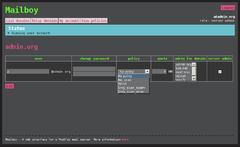
What does this look like ?

A few screenshots will better describe this:

Mailboy - list and edit domains
Mailboy - account details
Mailboy - relay domains
Mailboy - Amavis policies
Mailboy - wow, a clean theme

Ok, lets do it !!

PLEASE TRY THIS ON A TEST SERVER FIRST, you can try it out using a test server be it a real one or via something like VirtualBox. You should always do this when installing any software on a production server. This means that you can possibly break your email server if you do not know what you are doing and are not patient. So take your time in a test environment.. If you are working on an email server I assume you know what you are doing anyways. :]

First thing

You will need a mail server that should be based on the Workaround.org ISP style email tutorial (Don't worry if you are still using the Etch version, it'll in fact be even easier). If you have not installed your mail server than follow the tutorial, it's a good document in that the instructions are precise yet complete, it doesn't lack explanations (so you can actually learn what's going on) and mostly it works just fine. You can for sure manage to use Mailboy in other situations but for that you are on your own (unless you hire me). :]

This page contains information for upgrading from Etch tutorial and Lenny tutorial, all steps are for both systems unless they are color coded as follows:

This is only for Etch tutorial
This is only for Lenny tutorial

Everything else is for both

DB operations

We need to change the way the database looks and add new tables, the simplest way is to (you should know how to do this):

  1. Export/backup the required data (virtual_domains, virtual_users, virtual_aliases)
  2. Drop all the tables on database 'mailserver'
  3. Create new database scheme

    For this there is an included file called database.sql which basically can be copy pasted to PhpMyAdmin or to Mysql shell...

  4. Insert old data
    The data from Etch tutorial should be compliant with the new database structure unless there are double entries.
    On Lenny tutorial user is called "email", we'll need to replace email by user. like this: INSERT INTO `virtual_users` (`id`, `domain_id`, `password`, `email`) VALUES should become: INSERT INTO `virtual_users` (`id`, `domain_id`, `password`, `user`) VALUES We also need to replace things like user@domain.tld to just user. With a text editor you can find and replace, using vim you can use: :%s/@.*'/'/

    The same issue occurs with the table virtual_aliases, the source field should be without the "@domain.tld" part, use the vim trick to get rid of that stuff

  5. Add mailadmin user.

    This user can read/write/delete from the mailserver database, it is needed by Mailboy. From within mysql you may simply type (replace password of course!)

    GRANT SELECT , INSERT , UPDATE , DELETE , CREATE , DROP , INDEX , ALTER , CREATE TEMPORARY TABLES , CREATE VIEW , SHOW VIEW , CREATE ROUTINE, ALTER ROUTINE, EXECUTE ON mailserver . * TO 'mailadmin'@'localhost' IDENTIFIED BY 'crazy_secure_password'; FLUSH PRIVILEGES ;
  6. IMPORTANT NOTE: If you get an error like ""constraint exists blah blah" it is probably just because the data is not inserted in the correct order (and so an email cannot exist unless the domain it's referenced to by domain_id exists). Just insert data in this order:
    1. virtual_domains
    2. virtual_users
    3. virtual_aliases

Postfix configuration

Lenny needs a few minor changes, basically we'll need to change the query lines in the following files:
  1. /etc/postfix/mysql-virtual-mailbox-maps.cf query = SELECT 1 FROM view_users WHERE email='%s'
  2. /etc/postfix/mysql-virtual-alias-maps.cf SELECT destination FROM view_aliases WHERE email='%s'
  3. /etc/postfix/mysql-email2email.cf SELECT email FROM view_users WHERE email='%s'

To add the Relay domain functionality add the new file /etc/postfix/mysql-relay-domains.cf and inside write:

user = mailuser password = mailuser_password hosts = 127.0.0.1 dbname = mailserver query = SELECT domain FROM relay_domains WHERE domain like '%s'

change permissions

chown root:postfix /etc/postfix/mysql-relay-domains.cf chmod 640 /etc/postfix/mysql-relay-domains.cf

configure Postfix to use the new file

postconf -e relay_domains=mysql:/etc/postfix/mysql-relay-domains.cf postconf -e relay_recipient_maps=

If you want to scan aliases addressed to accounts on this server according to the destination account's Amavis settings we should remove the no_address_mappings from main.cf, and add it to master.cf.

comment or delete from main.cf:

# receive_override_options = no_address_mappings

add in master.cf:

-o receive_override_options=no_header_body_checks,no_unknown_recipient_checks,no_address_mappings

NEW (0.5): We need to add a couple more files and edit main.cf again to use the new ACL settings. This will allow the admin to block or unblock IPs and/or email addresses.

NOTE: If you are upgrading from 0.4.X please read the included "UPGRADE" file for instructions on updating Mailboy's config and database (easy).

Edit /etc/postfix/mysql-smtpd_sender_restrictions.cf:

user = mailuser password = mailuser_password hosts = 127.0.0.1 dbname = mailserver query = SELECT state FROM domain_access WHERE domain = '%s'

Edit /etc/postfix/mysql-ip-access.cf:

user = mailuser password = mailuser_password hosts = 127.0.0.1 dbname = mailserver query = SELECT state FROM ip_access WHERE ip = '%s'

Change permissions:

chmod 640 /etc/postfix/mysql-ip-access.cf chmod 640 /etc/postfix/mysql-smtpd_sender_restrictions.cf chown root:postfix /etc/postfix/mysql-ip-access.cf chown root:postfix /etc/postfix/mysql-smtpd_sender_restrictions.cf

Edit /etc/postfix/main.cf, add at the bottom:

# you should normally uncomment the following line #smtpd_helo_required = yes smtpd_helo_restrictions = permit_mynetworks, check_client_access mysql:/etc/postfix/mysql-ip-access.cf, reject_non_fqdn_helo_hostname, reject_invalid_helo_hostname # check twice because otherwise allowed IPs may not pass the second test smtpd_client_restrictions = permit_mynetworks, check_client_access mysql:/etc/postfix/mysql-ip-access.cf, reject_unknown_client_hostname smtpd_sender_restrictions = mysql:/etc/postfix/mysql-smtpd_sender_restrictions.cf

Because we modified some things you might want to restart Postfix

/etc/init.d/postfix restart

Dovecot

On Lenny edition edit /etc/dovecot/dovecot-sql.conf and change the password_query line to:

password_query = SELECT email as user, password FROM view_users WHERE email='%u';

If you want to use per user quota settings (optional) you should add just under the previous line (this assumes you store the emails in /var/vmail, otherwise change that):

user_query = SELECT CONCAT('/var/vmail/',CONCAT(SUBSTRING_INDEX(email,'@',-1),'/',SUBSTRING_INDEX(email,'@',1))) AS home, 5000 AS uid, 5000 AS gid, CONCAT('maildir:storage=',quota_kb,':messages=',quota_messages) AS quota FROM view_users WHERE email='%u';

(optional)To enable per user quota settings we need to just add the user_query line to /etc/dovecot/dovecot-sql.conf (this assumes mails are stored in /home/vmail, otherwise change this part)

user_query = SELECT CONCAT('/home/vmail/',CONCAT(SUBSTRING_INDEX(email,'@',-1),'/',SUBSTRING_INDEX(email,'@',1))) AS home, 5000 AS uid, 5000 AS gid, CONCAT('maildir:storage=',quota_kb,':messages=',quota_messages) AS quota FROM view_users WHERE email='%u';

To enable per user quota we also need to edit /etc/dovecot/dovecot.conf. We need to search for the sections protocol imap { and add:

mail_plugins = quota imap_quota

and protocol pop3 { mail_plugins = quota

and protocol lda { mail_plugins = cmusieve quota

If you are using the Etch tutorial you may still be using the Lenny version Debian. However I'm not sure the quota stuff will work on Dovecot on Debian Etch

You may now restart Dovecot

/etc/init.d/dovecot restart

Amavis

This is where we tell Amavis to actually use the policy table in the database, if you don't do this part everything should still work but users may not change their scan policies

So let's edit /etc/amavis/conf.d/50-user and change or add a few things (if the setting is not in the file then you may add it)

  1. change #$sa_spam_subject_tag = undef; to: $sa_spam_subject_tag = 'SPAM:';
  2. change the $sql_select_policy to $sql_select_policy = 'SELECT * FROM view_users_policies WHERE email IN (%k)';
  3. change or add $sql_select_white_black_list, it should be: $sql_select_white_black_list = undef;

We can finally install Mailboy

At this point your server should be working as usual, so make sure that it works before continuing.

Now you'll need to download Mailboy, for that you may click here. Unpack it where you wish to use it (you should be fluent with this kind of thing).

Copy the example database configuration file db_config.php.example to db_config.php

  1. $db_user: in this case should be "mailadmin"
  2. $db_pass: the crazy secure password
  3. $db_host: in most cases "localhost" should work
  4. $db_database: unless you changed something: mailserver
  5. $super_dooper_user: this sould be set to the id of the master user. This prevents other server admins from modifying this account or managing server admins.

Then copy the example configuration file config.php.example to config.php and change a few things:

  • $mailboy_root: this is the path to the Mailboy install, if you installed Mailboy at the root of your web directory then this should be empty ("")

Other options are:

  • $template: yes, it's completely templatabel :]
  • $privacy_level: 0 is secure, however if you want to allow others to list/add/edit/delete certain things you can change this setting (more info in the config file)

Any user can already log into Mailboy and change their passwords, however there are no admins yet, you should start by manually adding yourself as admin. You can do this via phpMyAdmin or via Mysql (in this case the target user id is 42:

UPDATE virtual_users SET `admin` =1 WHERE id = 42;

Now the user with the id 42 may log in as server admin, the user may now define per domain admins, policies etc etc etc..

I worked quite a while on this after getting some positive feedback on the Bash script that serves this same purpose, so any comments are welcome (via the comment form or the "contact" page).. I hope this project is useful to others. : ]

Bash Email Admin Script

Published by manu

A script designed to administer an Email server using Workaround.org tutorial.

I wrote this little script as a replacement for a python script who's purpose is/was to administer an email server (add/remove/modify domains/accounts/aliases).. it's GNU Kosher : ]

oh, careful, there is now a new version of the Workaround ISP mail tutorial, the Lenny edition (in case this page gets old), so get the lenny script if you used the latest tutorial, and the plain one for use on the etch edition

backup script

Published by manu

a simple backup script

the goal of this script is to create a local backup in a folder made for that and then upload it to an FTP server.. it is as simple script for a simple task and for me it works just fine.. . of course you can and should modify to suit your needs if necessary.

things you will need :

for this script to work "as is" you will need the following :

  • NCFTP : install ncftp and create a bookmark and save the password.
    IMPORTANT, this should be done with the user that will execute the backup script, in my case the user is root. .. .
  • bzip2 : this thing will be of use for compressing the archives, you can decide to not use it and just make regular ".tar.gz" files instead. . to do that change "tar jcfp" to "tar zcf" in the script

settings

this part should be simple, especially because the script is quite commented (in english yay) but i might be more detailed about some things here.. .

  • BACKUPROOT : this is where the backups will be stored. NOTE: in this folder the script will create a link called "current" that points to the latest backup.
  • DAYS : here you can set the number of days worth of backups to conserve (locally) anything older will be erased upon execution of the script.
  • BACKUPDIRS : this is the list of stuff to backup, you can just put the full path to each folder you want to backup separated by a space
  • NCFTPBOOKMARK : this should be the name of the NCFTP bookmark to use IMPORTANT : to tell ncftp what needs to be done, create a file /root/ftpcommands containing the commands NCFTP should execute, i put an example in the script of what i use. (in my case i connect to the FTP server, erase whatever is already there and then upload the new backup, if you have more space than lol for you :] )

usage

you should put the script in something like, /usr/local/sbin/backup.sh and then just simply execute the script. if you want you can tell crontab to do it for example like this (every day at 5 am) :

echo "0 5 * * * root /usr/local/sbin/backup.sh"

the script

the script is here below if you are the copy paste kind of person, if you are more into the wget mood you can get it from this link

#!/bin/bash # this script creates tar.bz2 archives and places them in a backup folder ordered by date # where the latest is linked to a folder called "current" # DEPENDS: bunzip2 ncftp (for ncftp create a bookmark with saved password) # TODO: - simplify ftp uploading # - do something about scp/rsync maybe # AUTHOR: Emmanuel REVAH manu-AT-manurevah.com http://manurevah.com/ # i'm not sure about a licence so whatever, just don't sue me.. . ... :] # o/ logger "backup script: started" DATE=$(date +%a_%d_%b_%Y_%Hh%Mm%S) MONTH=$(date +%B_%Y) ########### configuration options ############## # where we keep all the backups BACKUPROOT="/home/backup/mybackup" BACKUP="${BACKUPROOT}/${MONTH}/backup_${DATE}/" # how many days worth of backups do we need to keep ? DAYS="5" # folders to backup: space separated values BACKUPDIRS="/etc /var/log" BACKUPDIRS=`ls -d ${BACKUPDIRS}` # ncftp (create a bookmark with saved password) # you will also need a file with ftp commands in /root/ftpcommands mine contains: # cd backup # rm -rf current # put -r /home/backup/current # quit NCFTPBOOKMARK="ftpbookmark" # either place a file containing ONLY the password in clear text (chmod 600 and chown root of course) # or just replace the password here MYSQL_USER_PASS="--user=root --password=`cat /root/.sqlpasswd`" ############ end of configuration ################ # cleanup up the "current" folder and link the new one rm -f ${BACKUPROOT}/current test -d ${BACKUP} || mkdir -p ${BACKUP}/mysql ln -s ${BACKUP} ${BACKUPROOT}/current # make some archive files for DIRS in ${BACKUPDIRS}; do DIRNAME=`echo ${DIRS}|sed 's///_/g'` tar jcfp ${BACKUP}/${DATE}${DIRNAME}.tar.bz2 ${DIRS}; done # mysql: please test this line to make sure it correctly lists the names of the databases MYBASES="`ls -1 /var/lib/mysql |grep -v ib_* |grep -v debian-5.0.flag | grep -v mysql_upgrade_info`" for DBS in ${MYBASES};do mysqldump --databases ${DBS} ${MYSQL_USER_PASS} > ${BACKUP}/${DATE}_${DBS}.sql done logger "backup script: local backup done :]" ncftp ${NCFTPBOOKMARK} < /root/ftpcommands logger "backup script: upload current backup to ${NCFTPBOOKMARK}" # erase older data find ${BACKUPROOT} -type f -mtime +${DAYS} -exec rm -rf {} ; rmdir -p ${BACKUPROOT}/*/*/* logger "backup script: removed backups older than ${DAYS} days" exit

photos.sh

Published by manu

unload and file photos from a camera.. . digital of course

the use of this script is to copy (or move) photos from a camera (mounted as a regular mass storage device) to a folder filing system organised by date.. . (each photo gets a folder with it's date).. . . you will need for this to work exiv2 so do install this before using the script.

what this should do

to properly use this script :

  • go into the folder where the photos arrive, normally this would be on the camera itself however you can actually use this script to reorganize already taken photos of course.
  • execute the script "photo_save.sh"

the script will :

  • for each photo taken (including in child folders (although there is an option for this)
  • figure out the date when the picture was taken through EXIF
  • create a folder with the date and put the photo in it

configuration options

a resumé of the available options :

  • UNLOAD : this is where you determine the base folder where things will go
  • METHOD : here you can decide if you want the script to be recursif or not
  • EXTENSIONS : depending on the method you chose the syntax will change, use the examples to suit to your taste (and needs)

i personally use a copy of the script for each camera, so i rename the script to photo-save-d50.sh for my "D50".. .. .. of course here you do what you want obviously...

the script

you can download the script with this link or copy paste it from below . .. .. .

#!/bin/bash # script designed to help unload photos from camera/cd/or_whatever # to folders ordered by date based on EXIF info. # USAGE: cd /to/the/folder/where/the/files/are # sh photo-save.sh # DEPENDS on: exiv2 # HINTS: if you have multiple cameras you can: # - copy this script accordingly: ex. cp photo-save.sh photo-save-d50.sh # - make sure that UNLOAD parameter is set: ex. /home/user/unload/d50/ # - now use photo-save-d50.sh instead of photo-save.sh # - repeat the same for as many cameras you need to.. # if you didn't already know, you can chmod +x photo-save.sh and copy it # to a "bin" folder (ex /usr/local/bin/) # # AUTHOR: Emmanuel REVAH manu-AT-manurevah.com http://manurevah.com/ # i'm not sure about a licence so whatever, just don't sue me.. . ... :] # o/ # root folder for unloading pictures to UNLOAD='/home/manu/toph/unload/d50/' # the script can either work on files in current directory OR # work on files in current directory AND recursively # 1=current ; 2=recursive METHOD=2 if [ ${METHOD} == 1 ]; then # Methode 1 options # types of files we want to move/copy (space separated values) # HINT: you might need to add uppercase extensions EXTENSIONS="*.jpg *.nef" # list files based on EXTENSIONS FILETYPES=`ls ${EXTENSIONS} 2>/dev/null` fi if [ ${METHOD} == 2 ]; then # Method 2 options # you'll have to add the extensions accordingly # default line (you can replace "name" by "iname" for removing case sensitivity) # FILETYPES=`find . -name "*.jpg" -or -name "*.nef"` FILETYPES=`find . -name "*.jpg" -or -name "*.nef"` # avec regex: find ./ -regex ".*(jpg|nef)$" fi # for every file we will find out the EXIF date and put the file into the # apropriate dated folder (created if needed) for i in ${FILETYPES}; do YEAR=`exiv2 $i 2>/dev/null |grep timestamp|cut -d " " -f 4|cut -c 1-4` MONTH=`exiv2 $i 2>/dev/null |grep timestamp|cut -d " " -f 4|cut -c 6,7` DAY=`exiv2 $i 2>/dev/null |grep timestamp|cut -d " " -f 4|cut -c 9,10` WHEREIGO=${UNLOAD}/${YEAR}/${MONTH}_${YEAR}/${DAY}_${MONTH}_${YEAR} # test if value year is empty if [ -z ${YEAR} ] then echo "$i: No Exif data found in the file" else mkdir -p ${WHEREIGO} cp $i ${WHEREIGO} fi; done exit